> ## Documentation Index
> Fetch the complete documentation index at: https://docs.condense.io/llms.txt
> Use this file to discover all available pages before exploring further.
# Roles and Permissions
## Overview
Condense provides a layered Role-Based Access Control (RBAC) system that defines how users are onboarded, granted access, and permitted to operate within the platform. This RBAC model supports:
* Clear administrative separation
* Strong isolation between environments and workspaces
* Predictable and least-privilege access assignment
* Smooth governance for teams of all sizes
The RBAC model spans two areas of the Condense platform:
**Condense Console** – the organization control plane **Condense Core** – the operational data plane containing environments and workspaces
This document describes each role, how access propagates, and how administrators assign members across these layers.
## **Access Layers in Condense**
Condense access is structured into three layers:
Copy
```text theme={null}
Organization → Environment → Workspace
```
Each layer has its own hierarchy, responsibilities, and roles. The diagram below shows the complete flow of access across Organization, Environment, and Workspace layers in Condense
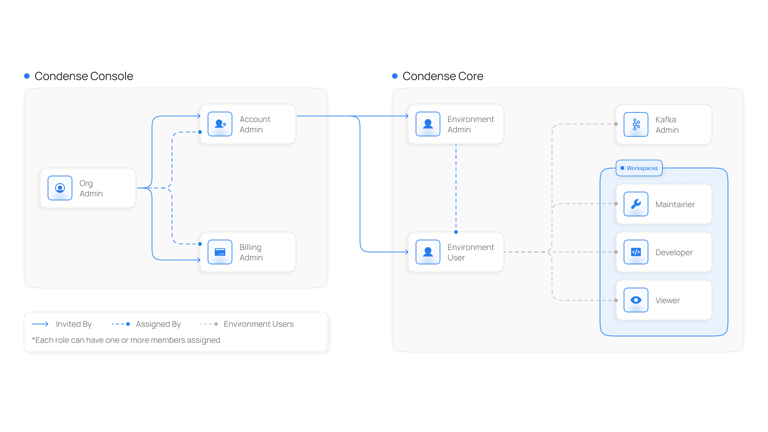 ## **Organization Layer** *(Condense Console)*
The Organization layer controls the company’s identity within Condense. Here, administrators manage:
* Organization profile
* Users and roles
* Environment onboarding
* Member invitation
* Billing visibility
> Organization roles control **who governs the organization**, and **who can grant access to specific environments**.
### **Organization Roles**
#### **Organization Admin**
The top-level administrative role for the entire organization.
**Responsibilities**
* Set up and manage the organization
* Invite new members
* Assign Organization-level roles (Billing Admin, Account Admin, Environment Admin, Environment User)
* Assign environment access to members
* Link and manage environments associated with the organization
**Access Flow**
While Organization Admin manages access centrally, they must assign themselves an Environment Admin or Environment User role to operationally enter a specific environment.
#### **Account Admin**
Focused on access management for assigned environments.
**Responsibilities**
* Invite members to their assigned environments
* Assign environment roles (Environment Admin or Environment User)
* Suspend users in the environments they manage
#### **Billing Admin**
Role for financial governance and usage management.
**Responsibilities**
* View billing details and usage reports
* Manage payment information
* Visibility limited to the environments assigned to them
#### **Environment Admin (assigned from Console)**
An Organization Admin can assign a member to become Environment Admin for one or more environments.
This grants full access in those environments within Condense Core.
#### **Environment User (assigned from Console)**
A non-admin member of an environment.
Environment Users gain workspace-level access only through workspace-role assignments inside Condense Core.
## **Environment Layer** *(Condense Core)*
An Environment represents an isolated execution space containing Workspaces, applications, connectors, Kafka resources, and monitoring.
Each user entering an environment receives one of two roles:
* Environment Admin
* Environment User
These roles control access to Workspaces and operational features.
### **Environment Admin**
The highest authority within an environment.
**Capabilities**
* Full visibility into every workspace in the environment
* Create and manage workspaces
* Manage workspace membership
* Configure pipelines, connectors, transforms, and utilities
* Create, modify, and delete applications
* Access Kafka operations (topics, consumer groups, schema registry)
* View environment metrics and dashboards
Environment Admins do **not** need workspace-role assignments. They can operate across all workspaces automatically.
### **Environment User**
A non-administrative user who has access to the environment but **does not automatically see any workspace**.
Workspace visibility and workflow access depend entirely on the workspace roles assigned to them.
#### **Single-role assignment model**
Within an environment:
* An Environment User receives **one workspace role** (e.g., Developer, Maintainer)
* The role applies to **all workspaces selected** during assignment
* If more workspaces are added later, they must receive **the same role**
* Environment Users **cannot** hold mixed roles (e.g., Developer in W1 and Viewer in W2) within the same environment
> This simplifies governance and preserves consistent privilege levels.
## **Workspace Layer** *(Condense Core)*
Workspaces are operational areas inside an environment, each hosting its own applications, connectors, pipelines, and Kafka-based resources.
Workspace roles determine operational capability.
### **Workspace Roles**
#### **Kafka Admin**
Full Kafka management inside the assigned workspace(s). Manages topics, consumer groups, schema registry entities, and compatibilities.
#### **Maintainer**
Responsible for deploying and managing connectors, transforms, and utilities.
#### **Developer**
Creates, updates, and publishes applications. Can restore and delete applications in the assigned workspaces.
#### **Viewer**
Read-only access to applications, connectors, logs, and configurations.
## **How Access Works Together**
### **Access to Condense Core**
To enter an environment inside Condense Core, a user must have:
* Environment Admin, or
* Environment User
assigned at the organization layer.
Environment Admin → full environment visibility
Environment User → workspace visibility only after workspace-role assignment
### **Workspace Access**
Environment Admin
→ Sees and manages all workspaces automatically
Environment User
→ Sees only the workspaces for which a workspace role was assigned
→ Workspace role must be the same across all selected workspaces
## **Member & Role Assignment Flow**
### **Creating an Organization and Becoming Organization Admin**
1. Sign up or create a new organization in Condense Console [https://console.condense.zeliot.in/signUp](https://console.condense.zeliot.in/signUp)
## **Organization Layer** *(Condense Console)*
The Organization layer controls the company’s identity within Condense. Here, administrators manage:
* Organization profile
* Users and roles
* Environment onboarding
* Member invitation
* Billing visibility
> Organization roles control **who governs the organization**, and **who can grant access to specific environments**.
### **Organization Roles**
#### **Organization Admin**
The top-level administrative role for the entire organization.
**Responsibilities**
* Set up and manage the organization
* Invite new members
* Assign Organization-level roles (Billing Admin, Account Admin, Environment Admin, Environment User)
* Assign environment access to members
* Link and manage environments associated with the organization
**Access Flow**
While Organization Admin manages access centrally, they must assign themselves an Environment Admin or Environment User role to operationally enter a specific environment.
#### **Account Admin**
Focused on access management for assigned environments.
**Responsibilities**
* Invite members to their assigned environments
* Assign environment roles (Environment Admin or Environment User)
* Suspend users in the environments they manage
#### **Billing Admin**
Role for financial governance and usage management.
**Responsibilities**
* View billing details and usage reports
* Manage payment information
* Visibility limited to the environments assigned to them
#### **Environment Admin (assigned from Console)**
An Organization Admin can assign a member to become Environment Admin for one or more environments.
This grants full access in those environments within Condense Core.
#### **Environment User (assigned from Console)**
A non-admin member of an environment.
Environment Users gain workspace-level access only through workspace-role assignments inside Condense Core.
## **Environment Layer** *(Condense Core)*
An Environment represents an isolated execution space containing Workspaces, applications, connectors, Kafka resources, and monitoring.
Each user entering an environment receives one of two roles:
* Environment Admin
* Environment User
These roles control access to Workspaces and operational features.
### **Environment Admin**
The highest authority within an environment.
**Capabilities**
* Full visibility into every workspace in the environment
* Create and manage workspaces
* Manage workspace membership
* Configure pipelines, connectors, transforms, and utilities
* Create, modify, and delete applications
* Access Kafka operations (topics, consumer groups, schema registry)
* View environment metrics and dashboards
Environment Admins do **not** need workspace-role assignments. They can operate across all workspaces automatically.
### **Environment User**
A non-administrative user who has access to the environment but **does not automatically see any workspace**.
Workspace visibility and workflow access depend entirely on the workspace roles assigned to them.
#### **Single-role assignment model**
Within an environment:
* An Environment User receives **one workspace role** (e.g., Developer, Maintainer)
* The role applies to **all workspaces selected** during assignment
* If more workspaces are added later, they must receive **the same role**
* Environment Users **cannot** hold mixed roles (e.g., Developer in W1 and Viewer in W2) within the same environment
> This simplifies governance and preserves consistent privilege levels.
## **Workspace Layer** *(Condense Core)*
Workspaces are operational areas inside an environment, each hosting its own applications, connectors, pipelines, and Kafka-based resources.
Workspace roles determine operational capability.
### **Workspace Roles**
#### **Kafka Admin**
Full Kafka management inside the assigned workspace(s). Manages topics, consumer groups, schema registry entities, and compatibilities.
#### **Maintainer**
Responsible for deploying and managing connectors, transforms, and utilities.
#### **Developer**
Creates, updates, and publishes applications. Can restore and delete applications in the assigned workspaces.
#### **Viewer**
Read-only access to applications, connectors, logs, and configurations.
## **How Access Works Together**
### **Access to Condense Core**
To enter an environment inside Condense Core, a user must have:
* Environment Admin, or
* Environment User
assigned at the organization layer.
Environment Admin → full environment visibility
Environment User → workspace visibility only after workspace-role assignment
### **Workspace Access**
Environment Admin
→ Sees and manages all workspaces automatically
Environment User
→ Sees only the workspaces for which a workspace role was assigned
→ Workspace role must be the same across all selected workspaces
## **Member & Role Assignment Flow**
### **Creating an Organization and Becoming Organization Admin**
1. Sign up or create a new organization in Condense Console [https://console.condense.zeliot.in/signUp](https://console.condense.zeliot.in/signUp)
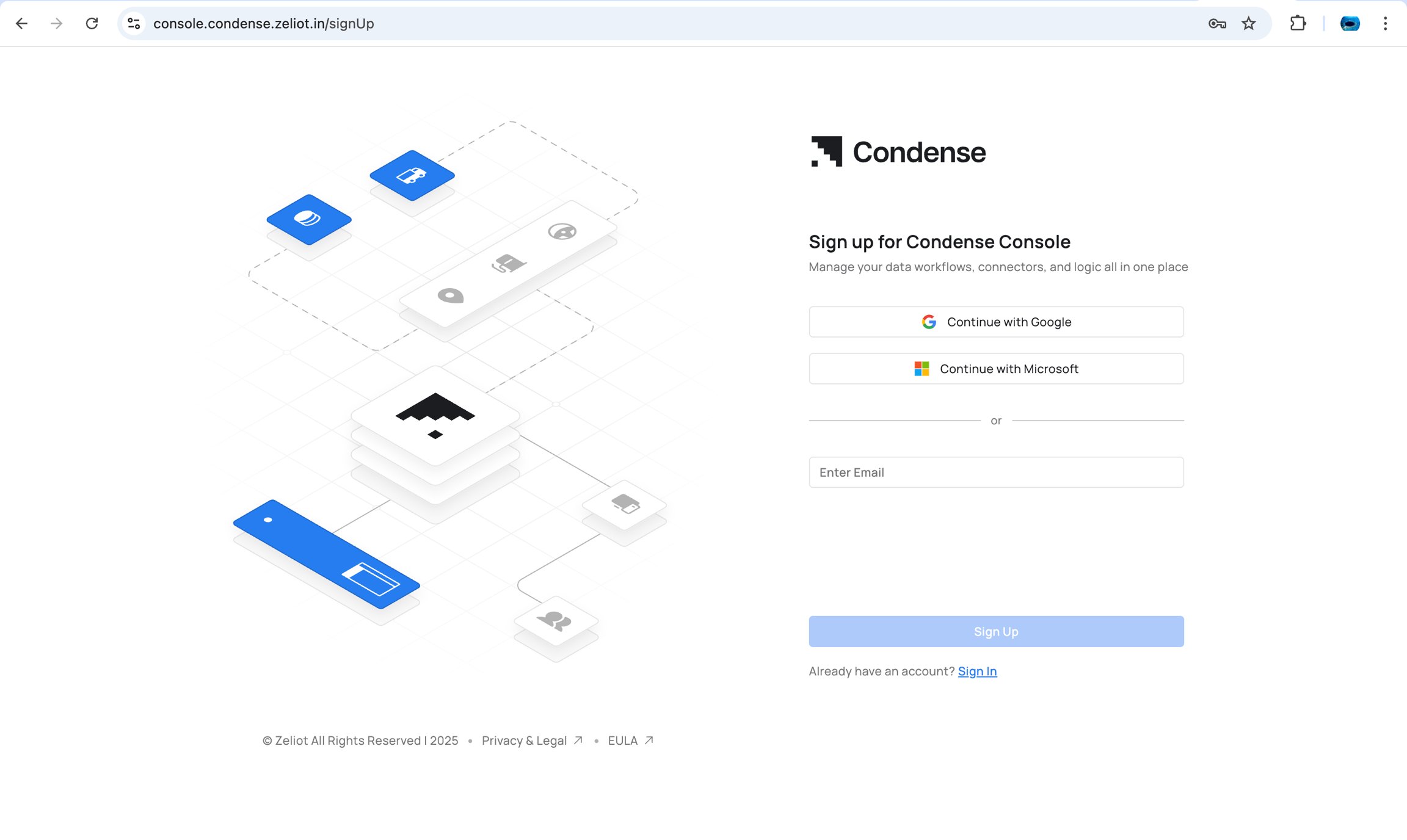 2. The creator automatically becomes the **Organization Admin**
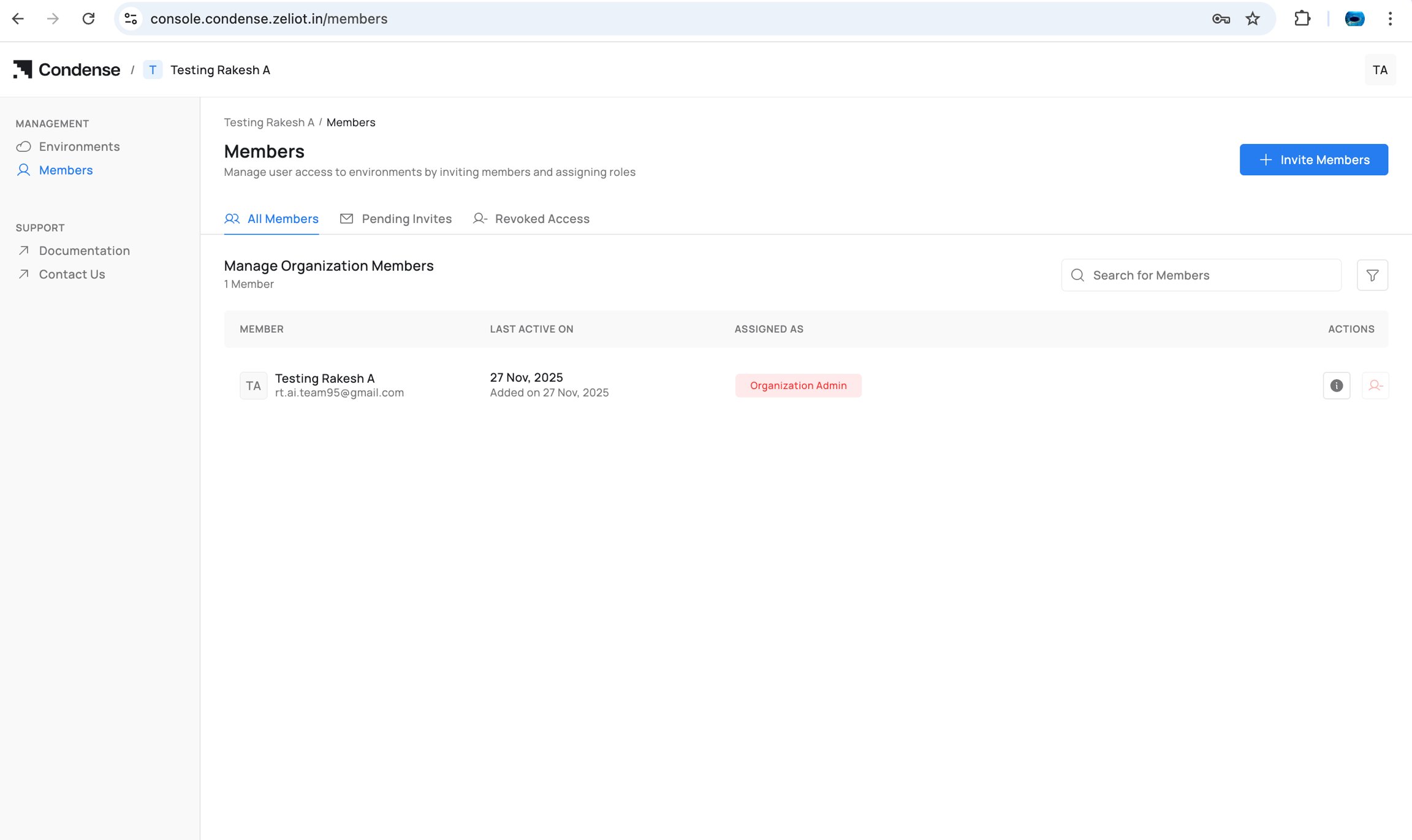 3. Environment(s) can now be linked to the organization
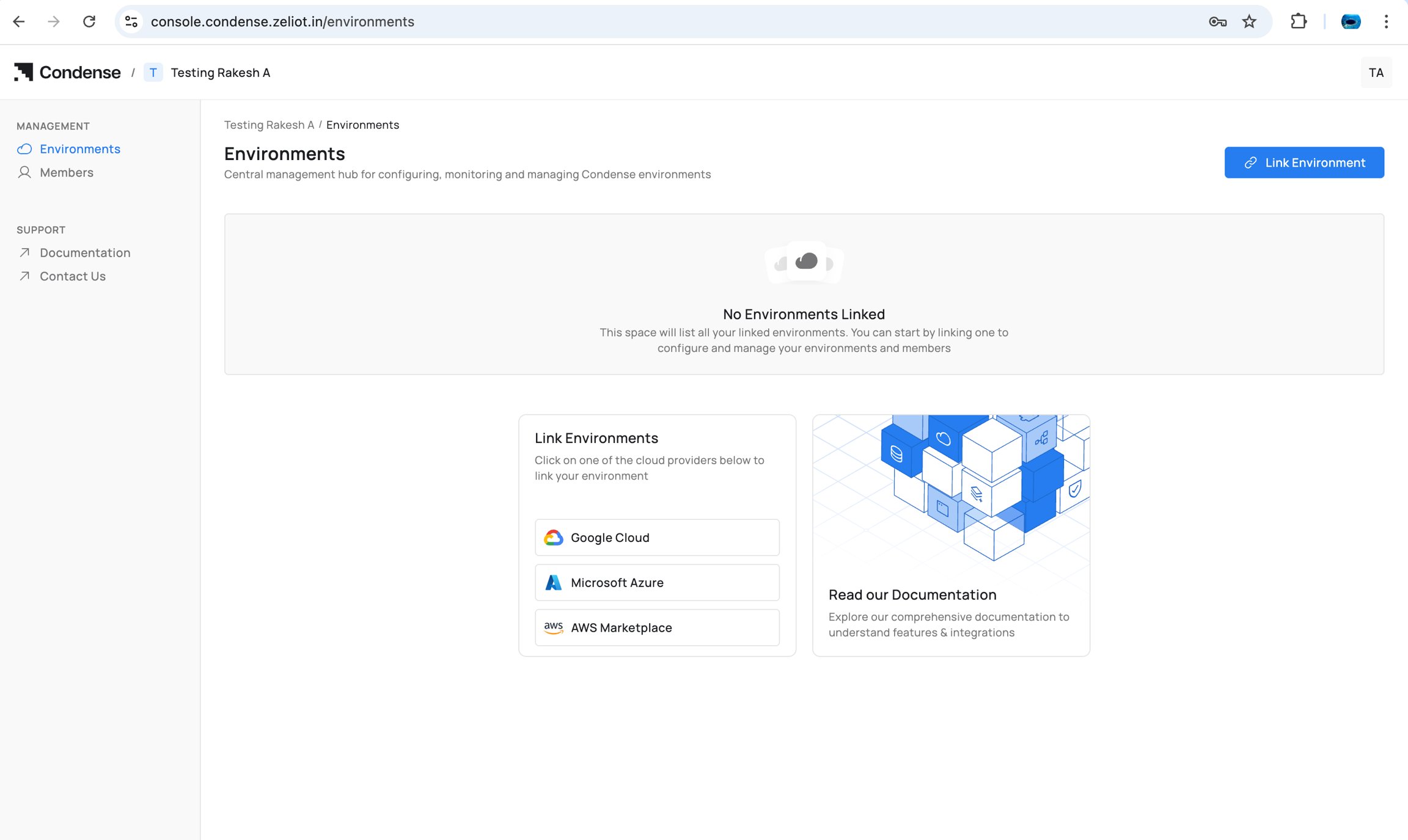 ### **Inviting Members**
As Organization Admin:
1. Go to **Members**
2. Select **Invite Member**
3. Enter user details
### **Inviting Members**
As Organization Admin:
1. Go to **Members**
2. Select **Invite Member**
3. Enter user details
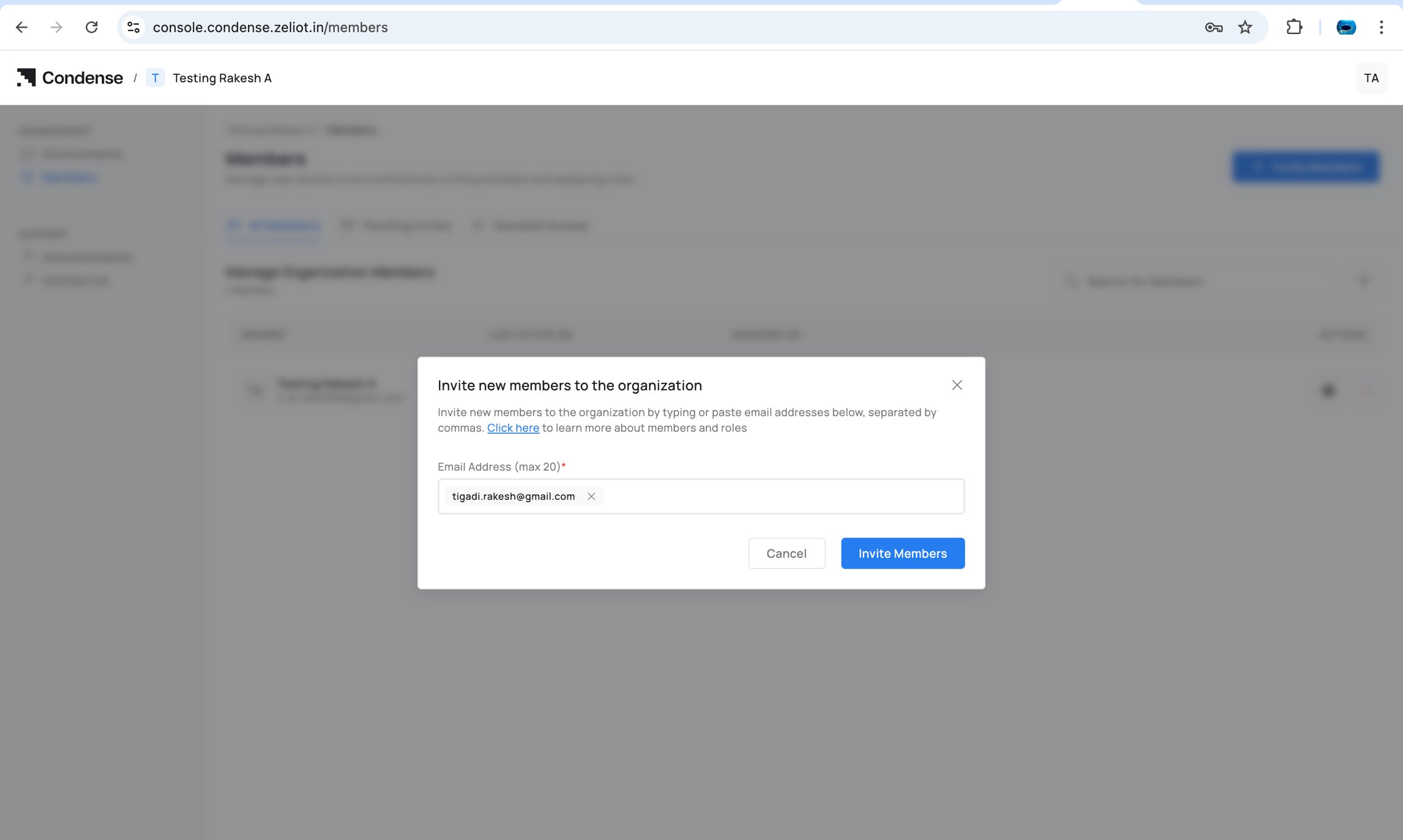 4. Send invite
Once accepted, the member appears under the organization.
4. Send invite
Once accepted, the member appears under the organization.
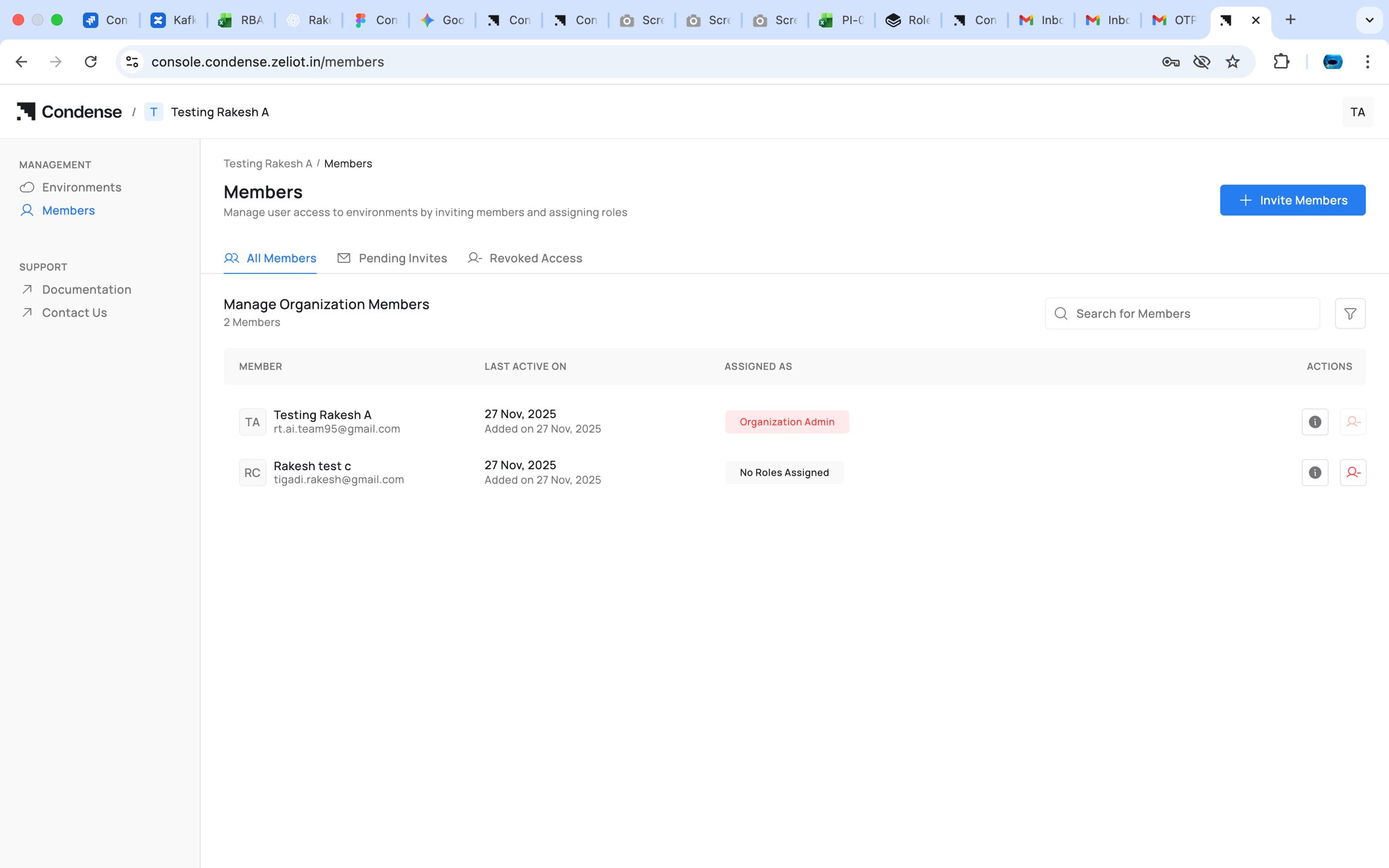 5. Select the member and assign one of the Organization-level roles:
* Organization Admin
* Account Admin
* Billing Admin
* Environment Admin (for selected environments)
* Environment User (for selected environments)
5. Select the member and assign one of the Organization-level roles:
* Organization Admin
* Account Admin
* Billing Admin
* Environment Admin (for selected environments)
* Environment User (for selected environments)
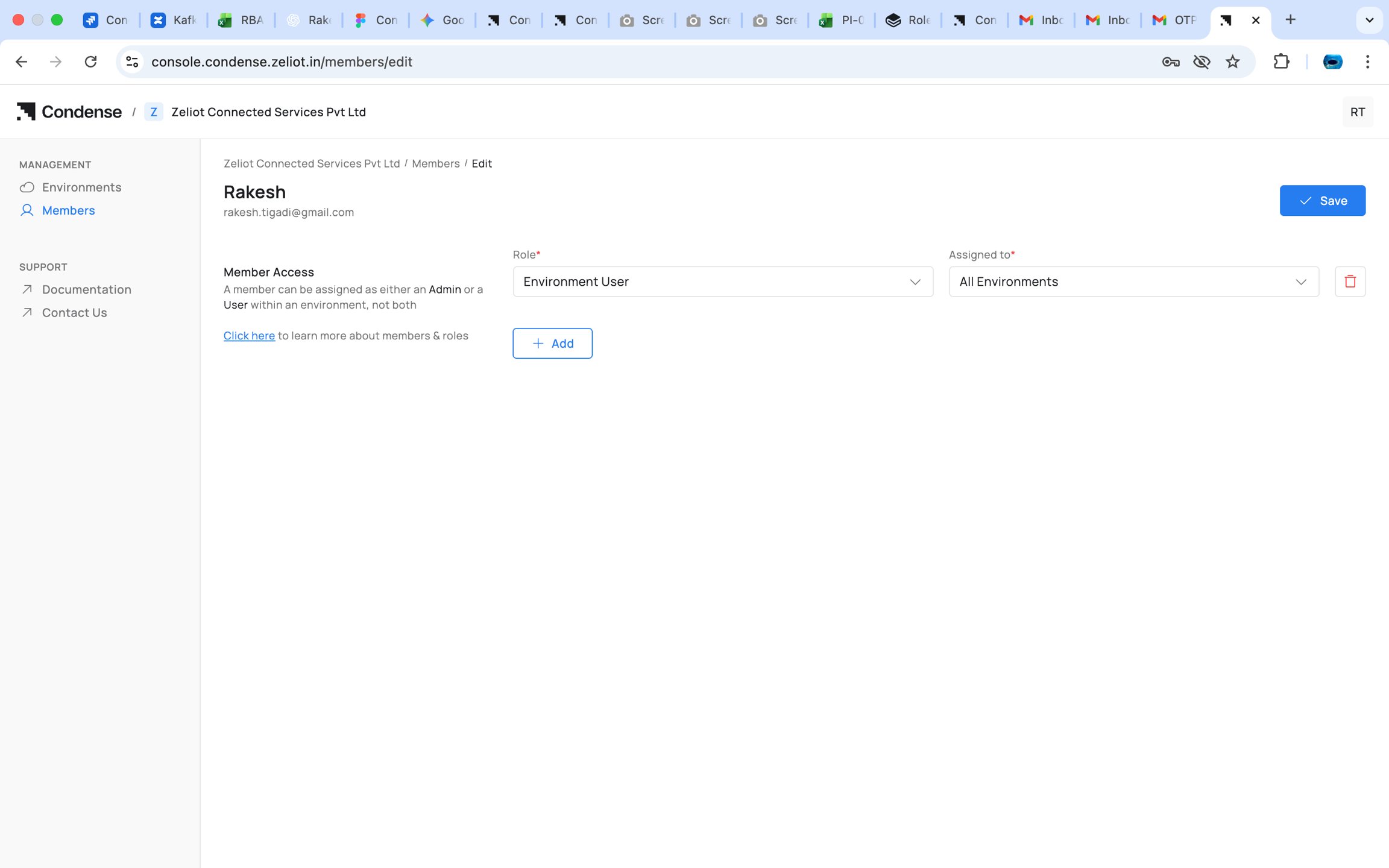 You cannot assign any role to member if there is no Environment is associated to organization
### **Assigning Organizational Roles**
Organization Admins can assign:
* Organization Admin
* Account Admin
* Billing Admin
These roles control access in Condense Console.
### **Assigning Environment Roles**
Organization Admin or Account Admin can:
1. Select a member
2. Choose **Add to Environment**
3. Select an environment
4. Assign either:
* Environment Admin
* Environment User
This determines the member’s access level inside Corrdese Core.
### **Assigning Workspace Roles (inside Condense Core)**
Only **Environment Admins** do this.
For an Environment User:
1. Navigate to **Members** in Condense Core
2. Select the Environment User
3. Choose **Assign Workspace Role**
4. Select role:
* Kafka Admin
* Maintainer
* Developer
* Viewer
5. Select one or more workspaces
> **Note** The role selected applies to all selected workspaces. Later additions must use the same role.
## **Example Scenario**
#### **Setup**
**Environments**: Production, Testing
**Workspaces**: FleetTracking, ColdChain, Sandbox
| Name | Org Role | Environment Role | Workspace Role |
| ------ | ------------------ | ---------------------- | ------------------------------------ |
| Anita | Organization Admin | Env Admin (Prod, Test) | — |
| Bharat | Account Admin | Env User (Prod) | Kafka Admin — FleetTracking |
| Divya | — | Env Admin (Test) | Maintainer — Sandbox |
| Eshan | — | Env User (Prod) | Developer — FleetTracking, ColdChain |
| Farah | — | Env User (Test) | Viewer — Sandbox |
#### **User Experience**
* **Anita** Full authority across both environments and all workspaces.
* **Bharat** Sees Production only. Sees only FleetTracking because of the Kafka Admin role.
* **Divya** Sees all workspaces in Testing. Can deploy and manage connectors in Sandbox.
* **Eshan** Sees Production. Sees FleetTracking and ColdChain as Developer.
* **Farah** Sees Sandbox with read-only access.
#### **Behavior**
* Environment Admins see and operate across **all workspaces** of their environments
* Environment Users only see the workspaces they have a role for
* Workspace roles for an Environment User always remain uniform across all selected workspaces
## Capability **Overview**
| Capability | Env Admin | Env User (Workspace Role) |
| ------------------------------- | :------------: | :-----------------------: |
| Access all Workspaces | ✅ | ❌ |
| Access only assigned Workspaces | Not applicable | ✅ |
| Create / delete Workspaces | ✅ | ❌ |
| Manage Workspace members | ✅ | ❌ |
| Deploy connectors | ✅ | Maintainer only |
| Develop applications | ✅ | Developer only |
| Kafka operations | ✅ | Kafka Admin only |
| View everything | ✅ | Viewer only |
Condense RBAC provides a structured, predictable access model across three layers:
* **Organization Layer** : governs who administers the organization and who can assign access
* **Environment Layer** : determines seniority and visibility for operations
* **Workspace Layer** : controls fine-grained operational capabilities
Environment Admins manage the entire environment and all workspaces. Environment Users gain workspace access only through explicit workspace-role assignments using a consistent role across selected workspaces.
This model keeps permissions clear, secure, and scalable, supporting diverse teams collaborating across multiple environments and workspaces.
## Lifecycle Guide
## **Frequently Asked Questions (FAQs)**
You cannot assign any role to member if there is no Environment is associated to organization
### **Assigning Organizational Roles**
Organization Admins can assign:
* Organization Admin
* Account Admin
* Billing Admin
These roles control access in Condense Console.
### **Assigning Environment Roles**
Organization Admin or Account Admin can:
1. Select a member
2. Choose **Add to Environment**
3. Select an environment
4. Assign either:
* Environment Admin
* Environment User
This determines the member’s access level inside Corrdese Core.
### **Assigning Workspace Roles (inside Condense Core)**
Only **Environment Admins** do this.
For an Environment User:
1. Navigate to **Members** in Condense Core
2. Select the Environment User
3. Choose **Assign Workspace Role**
4. Select role:
* Kafka Admin
* Maintainer
* Developer
* Viewer
5. Select one or more workspaces
> **Note** The role selected applies to all selected workspaces. Later additions must use the same role.
## **Example Scenario**
#### **Setup**
**Environments**: Production, Testing
**Workspaces**: FleetTracking, ColdChain, Sandbox
| Name | Org Role | Environment Role | Workspace Role |
| ------ | ------------------ | ---------------------- | ------------------------------------ |
| Anita | Organization Admin | Env Admin (Prod, Test) | — |
| Bharat | Account Admin | Env User (Prod) | Kafka Admin — FleetTracking |
| Divya | — | Env Admin (Test) | Maintainer — Sandbox |
| Eshan | — | Env User (Prod) | Developer — FleetTracking, ColdChain |
| Farah | — | Env User (Test) | Viewer — Sandbox |
#### **User Experience**
* **Anita** Full authority across both environments and all workspaces.
* **Bharat** Sees Production only. Sees only FleetTracking because of the Kafka Admin role.
* **Divya** Sees all workspaces in Testing. Can deploy and manage connectors in Sandbox.
* **Eshan** Sees Production. Sees FleetTracking and ColdChain as Developer.
* **Farah** Sees Sandbox with read-only access.
#### **Behavior**
* Environment Admins see and operate across **all workspaces** of their environments
* Environment Users only see the workspaces they have a role for
* Workspace roles for an Environment User always remain uniform across all selected workspaces
## Capability **Overview**
| Capability | Env Admin | Env User (Workspace Role) |
| ------------------------------- | :------------: | :-----------------------: |
| Access all Workspaces | ✅ | ❌ |
| Access only assigned Workspaces | Not applicable | ✅ |
| Create / delete Workspaces | ✅ | ❌ |
| Manage Workspace members | ✅ | ❌ |
| Deploy connectors | ✅ | Maintainer only |
| Develop applications | ✅ | Developer only |
| Kafka operations | ✅ | Kafka Admin only |
| View everything | ✅ | Viewer only |
Condense RBAC provides a structured, predictable access model across three layers:
* **Organization Layer** : governs who administers the organization and who can assign access
* **Environment Layer** : determines seniority and visibility for operations
* **Workspace Layer** : controls fine-grained operational capabilities
Environment Admins manage the entire environment and all workspaces. Environment Users gain workspace access only through explicit workspace-role assignments using a consistent role across selected workspaces.
This model keeps permissions clear, secure, and scalable, supporting diverse teams collaborating across multiple environments and workspaces.
## Lifecycle Guide
## **Frequently Asked Questions (FAQs)**