

Verify the connection
After you accept on the approval page, check that your AI tool can talk to Condense.1
Open your AI tool's chat
Use the chat or prompt window of the AI tool you connected.
2
Ask for your workspaces
3
Check the result
Your AI tool calls the
Get-all-workspaces tool and shows the workspaces you can access.- Your AI tool calls the Condense tool successfully.
- The workspaces you can access are listed.
- Workspaces outside your authorized access are not shown.
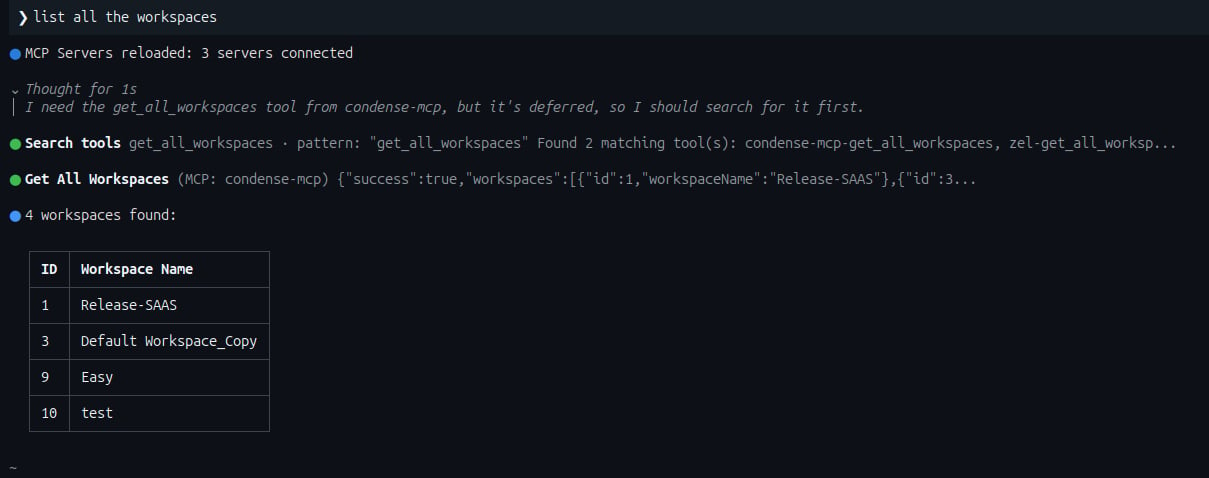
Copilot CLI listing the workspaces it can reach through Condense MCP.
Some AI tools load a server’s tools only when they need them. You may see your tool search for
Get-all-workspaces before it calls it. This is normal.If no tools appear
- The sign-in did not finish. Run your AI tool’s sign-in step again. In Claude Code, type
/mcp, selectcondenseand choose Authenticate. In Gemini CLI, run/mcp auth condense. In Codex, runcodex mcp login condense. - The URL or the field name is wrong for your AI tool. Check the URL and the setting for your tool in Connect your AI tool.
- No environment is assigned to your account. The approval page showed No Environments Assigned. Ask your administrator for access.
- The tool is switched off for you. You see Access denied. Ask your Condense administrator to enable it.
Reconnect or sign in again
During the beta, a sign-in lasts 30 minutes. After that your AI tool asks you to sign in again. In the next release the sign-in will refresh silently, and you will sign in again only if something goes wrong. If the connection expires, is disconnected, or needs authorizing again:1
Open your AI tool's MCP settings
Go to the MCP server or integration settings of your AI tool.
2
Find the Condense server
Locate the Condense MCP server you configured.
3
Reconnect
Select the reconnect or authenticate option.
4
Sign in again
Complete the Condense sign-in. You see the approval page again.
5
Verify
Check that the server shows as connected, then ask for your workspaces as above.
- Claude Code: run
/mcp, selectcondenseand choose Authenticate. - Claude Desktop and claude.ai: open Settings, then Connectors, and select Connect on the Condense connector.
- Cursor: open Customize, select the
condenseserver and sign in. - GitHub Copilot (VS Code): select Start above the
condenseentry in.vscode/mcp.jsonand sign in. - Gemini CLI: run
/mcp auth condense. - OpenAI Codex CLI: run
codex mcp login condense.