

Overview
The Alert Utility is a real-time monitoring tool that allows users to define conditions on streaming data and trigger alerts when those conditions are met for a specified duration. Alerts are published to an output topic for further action without manual intervention.Key Features
Real-Time Alerting
Dynamically monitors data streams and triggers alerts instantly when conditions are met.Flexible Rule Configuration
Supports multiple conditions (e.g.,>, <, =) on numeric, string, and boolean fields.
Configurable Alert Duration
Set a time window (0–1800 seconds) to ensure alerts only trigger after conditions persist.Topic-Based Integration
Reads from a single input topic and publishes alerts to a designated output topic.Grouped Alerts
Aggregates alerts by a user-defined key (e.g.,device_id, user_id) for targeted monitoring.
No-Code Setup
Intuitive UI for rule creation—no scripting required.How to Use the Alert Utility
Prerequisites
- Admin or Developer access in Condense
- Kafka topics created with proper permissions
- Basic understanding of your data schema
Step 1: Access the Alert Utility
- Log in to your Condense account
- From the main menu, select Transforms
- Click on Alert Utility from the Transforms page
Step 2: Choose Configuration Method
Option A: Auto-Fill from Topic (Recommended)
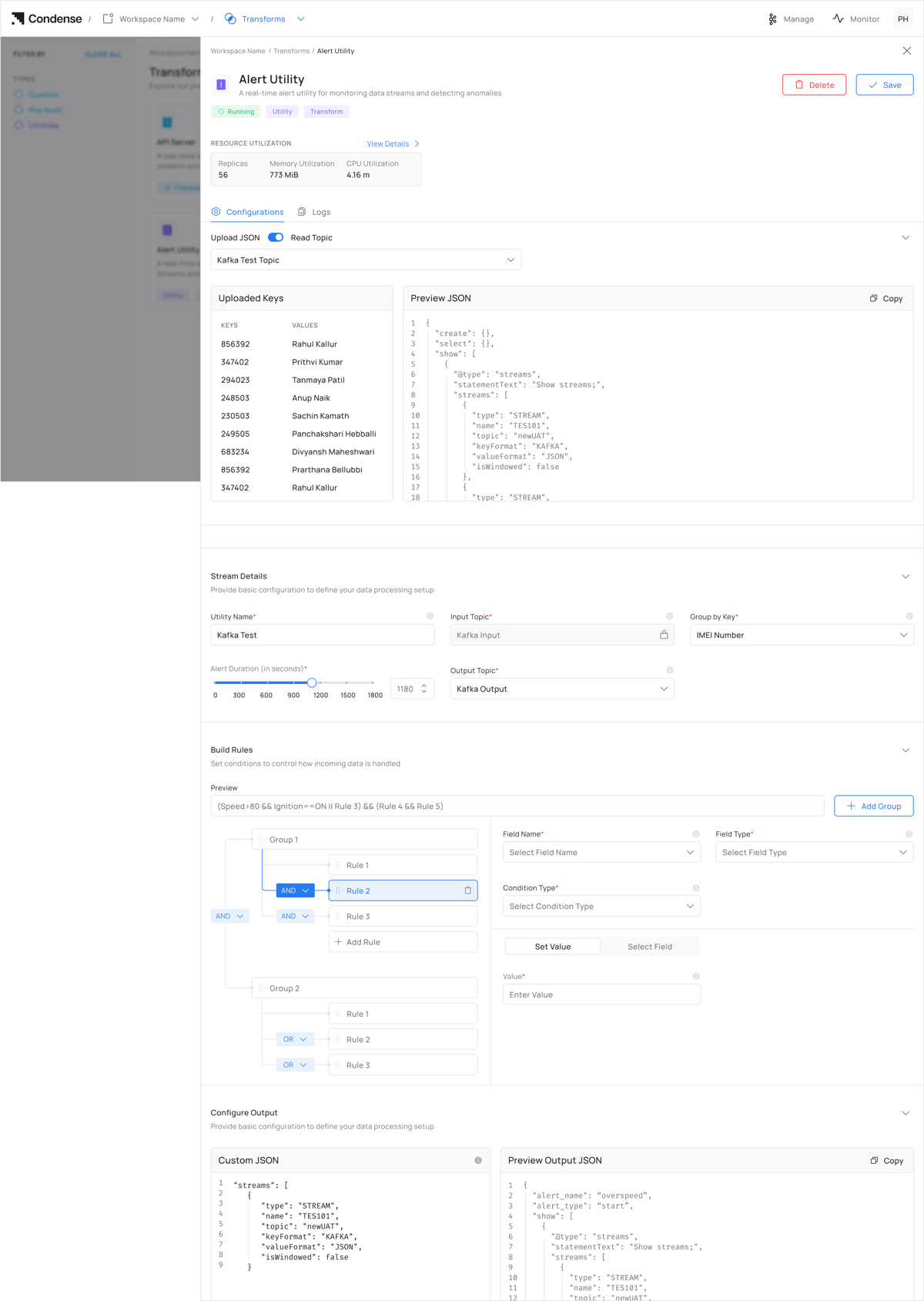
- Click “Choose a Topic” under Read Topic. It auto-populates schema fields for the configuration of the Alert utility.
Option B: Manual JSON Upload
Manual JSON must exactly match your Kafka topic schema
Step 3: Set Up Configurations for Topics
- Enter a descriptive Utility Name for your Alert configuration
- Select or specify the Input Topic that will provide data to the utility
- Group incoming records by a selected Group By key field to configure alert logic
- Specify the alert duration to control how long a condition must persist before triggering an alert
- Define a unique Output Topic for the alerts utility.
Step 4: Configure Rules for Alert
- Click Add Rule
- For each rule:
- Field Name: Select from auto-populated list (never type manually)
- Condition: Set operator (>, <, =) and threshold
- Grouping Rules - Click “Add Group” to combine multiple rules (Example: Group “Engine Alerts” with rules for temperature AND pressure). Rules follow logical evaluation order.
Step 5: Deploy
Real-Time Rule Preview - The top preview bar shows your current rule structure (Updates instantly as you add/change rules)Check the preview bar to verify:
- Correct grouping with parentheses
- Logical operator priority matches your intent
- Click Deploy Utility
- Go to Pipelines > Your Alert Name to monitor your alert deployment on the pipeline.
The process of editing or deleting a deployed utility remains the same
Editing an Alert Configuration
- Navigate to the Pipelines page
- Select the deployed Alert Utility you wish to modify
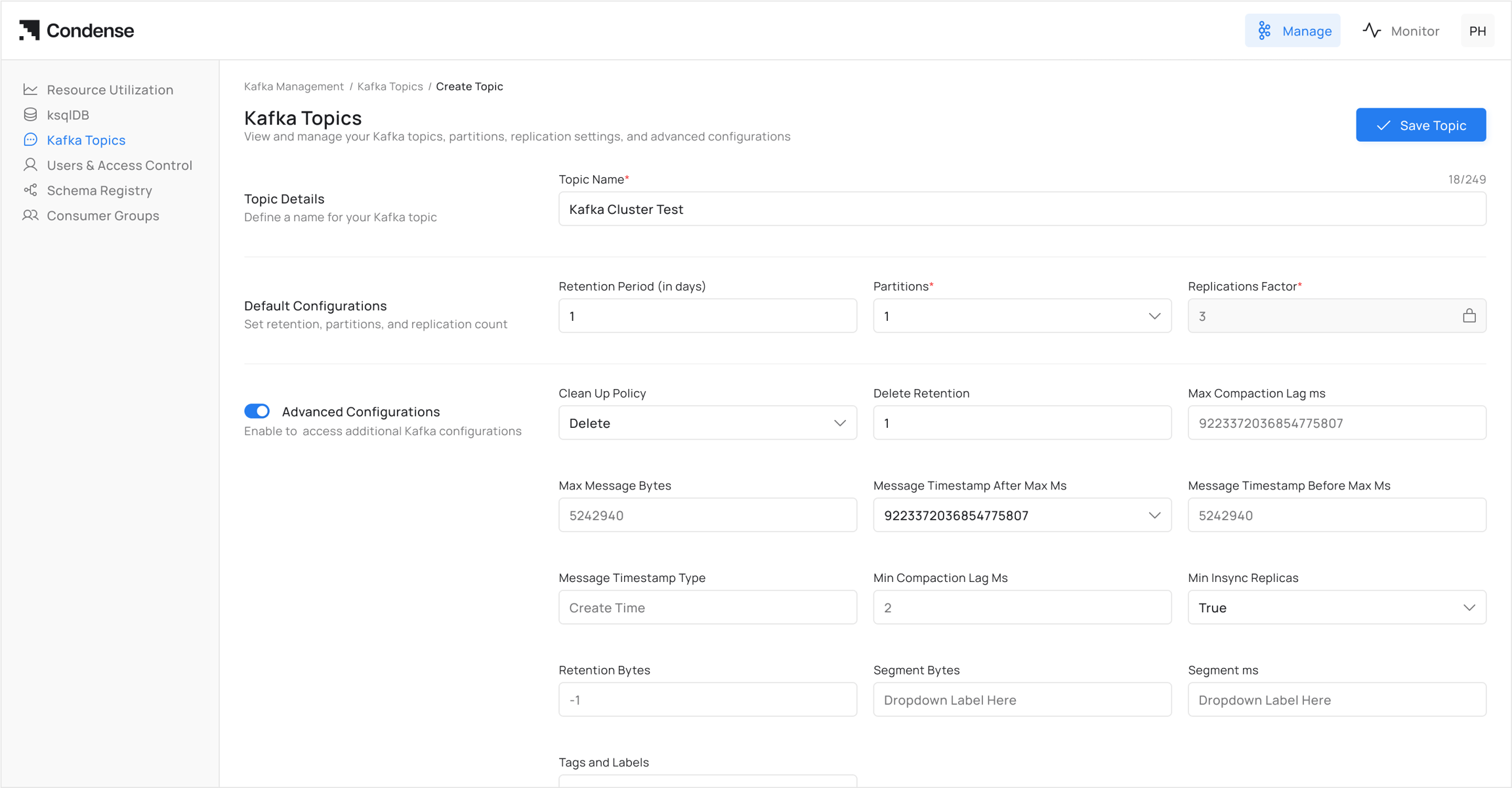
- Click Edit Configurations to access settings
- Update rule parameters as needed
- Click Deploy Utility to apply changes
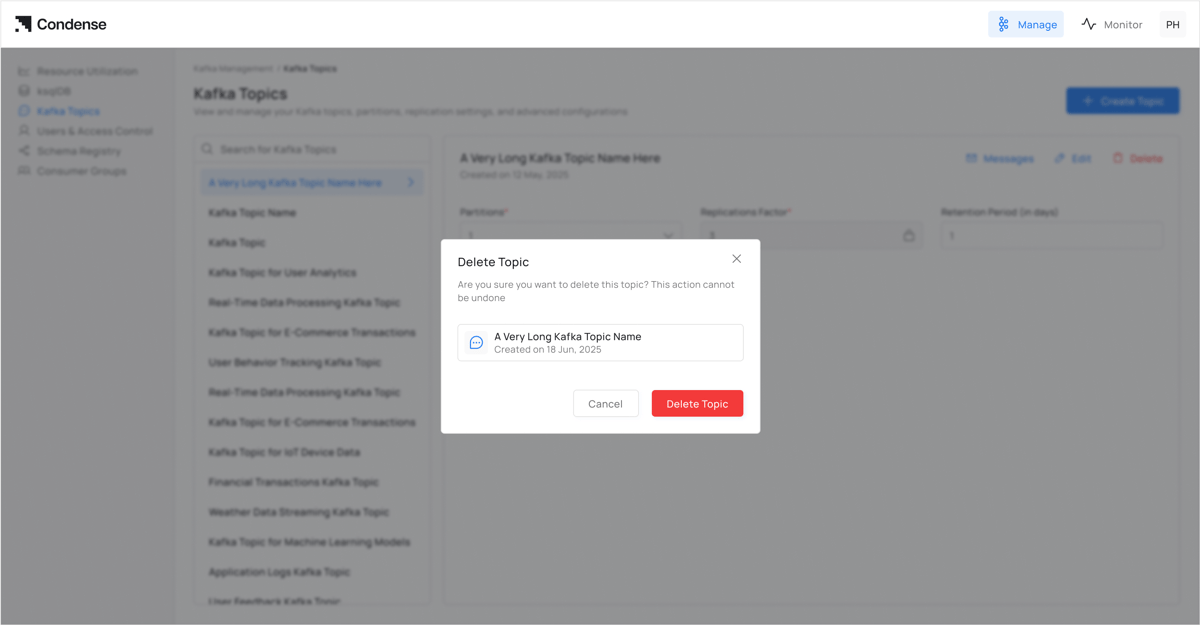
Deleting an Alert Configuration
- Navigate to the Pipelines page
- Select the deployed Alert Utility you wish to remove
- Click the Delete Utility button
- Confirm deletion in the prompt window
Frequently Asked Questions (FAQs)
Q1: Can I monitor multiple input topics with one alert configuration?
No, each alert configuration can only monitor a single input topic. If you need to monitor multiple topics, you’ll need to create separate alert configurations for each.Q2: How does the “Alert Duration” setting work?
The Alert Duration determines how long a condition must be continuously met before an alert is triggered. For example, if you set it to 60 seconds, the specified condition must persist for a full minute before an alert is sent to the output topic.Q3: Can I send alerts to multiple output topics?
No, each alert configuration can only send alerts to a single output topic. If you need to distribute alerts to multiple destinations, consider implementing additional logic downstream from your output topic.Q4: What field types are supported for alert conditions?
The Alert Utility supports Integer, Float, String, and Boolean field types.Q5: What condition types are available for rule configuration?
The available conditions include greater than (>), less than (<), equal to (=), matches (for strings), and between (for ranges).Q6: Can I create rules in bulk?
No, rules must be added individually through the interface. Bulk rule creation is not currently supported.Q7: How do I know if my alert utility is functioning correctly?
You can verify alert functionality by:- Checking the status on the Pipelines page
- Monitoring the output topic for alert messages