

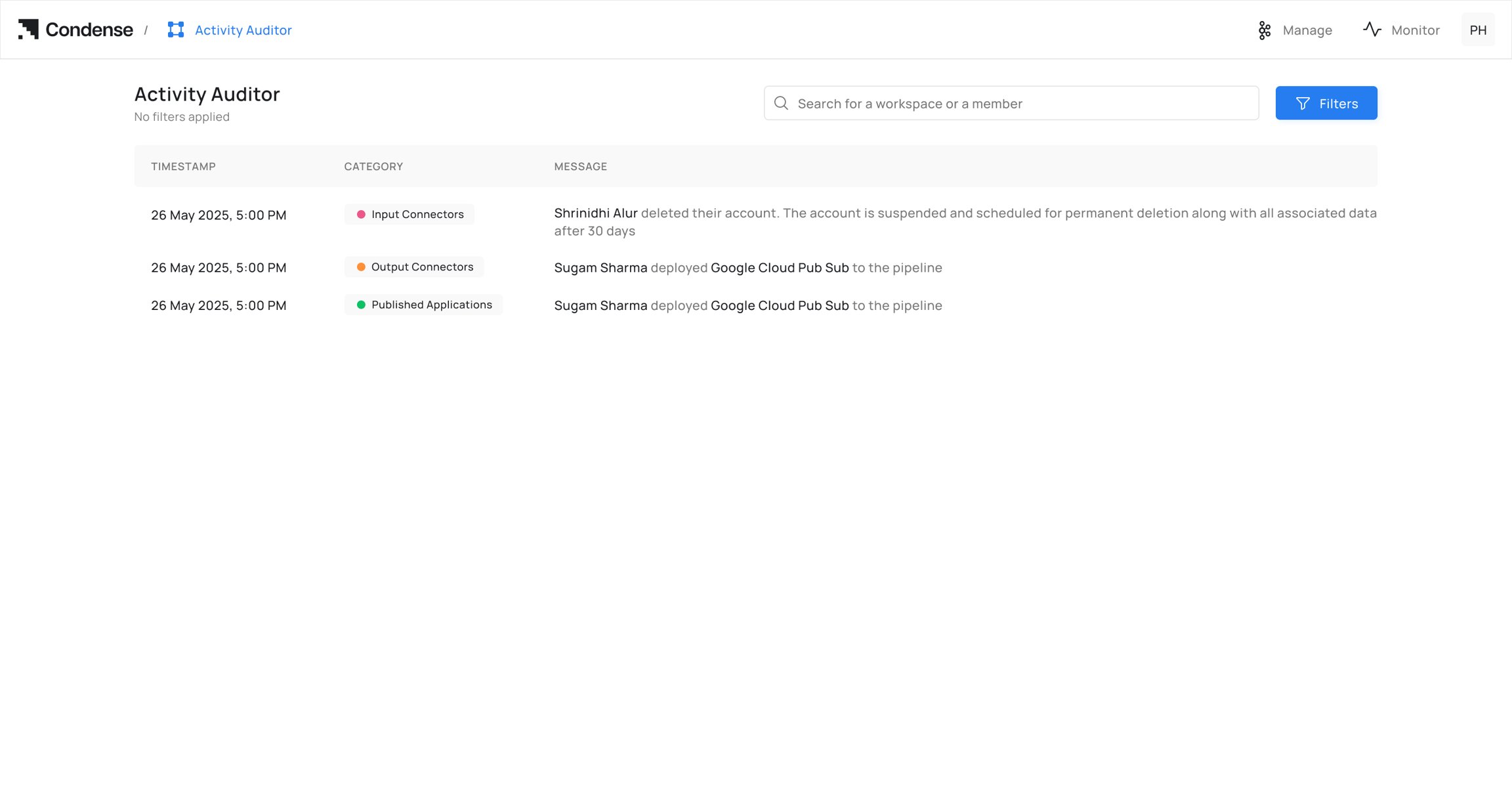
Key Features
Workspace Activity Tracking
- Tracks activities performed within workspaces, such as creating, editing, or deleting workspaces.
- Provides a log of actions taken in specific workspaces.
Connector Activity Logs
- Tracks actions performed on connectors, such as creating, editing or deleting connectors along with failure logs.
- Provides insights into the lifecycle of connectors and helps users monitor and troubleshoot activities.
Application Activity Tracking
- Log activities related to applications, such as creating, editing or deleting connectors along with failure logs.
- These logs provide visibility into the lifecycle of applications and help users monitor and troubleshoot activities.
User and Role Management
- Monitors actions related to users and roles, such as adding, editing, or removing users.
- Tracks role assignments and permission changes.
Account Actions
Logs high-level account actions, such as signing in, signing out, or deleting the account.How to Use the Activity Auditor
Accessing the Activity Auditor
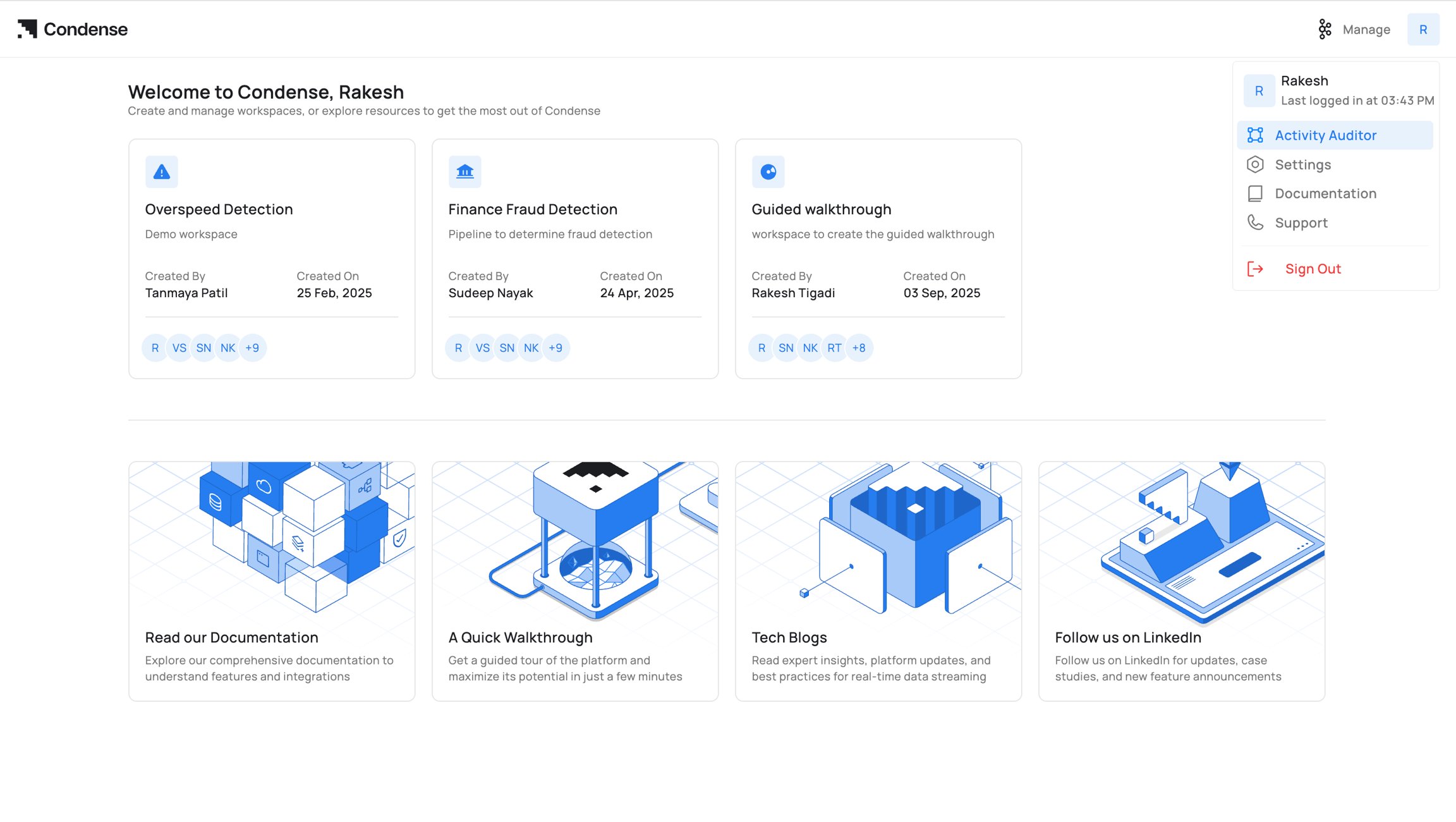
- Navigate to the Activity Auditor section in the Condense platform as showed in the above iimage.
- The dashboard displays a summary of activities and logs.
Viewing Logs
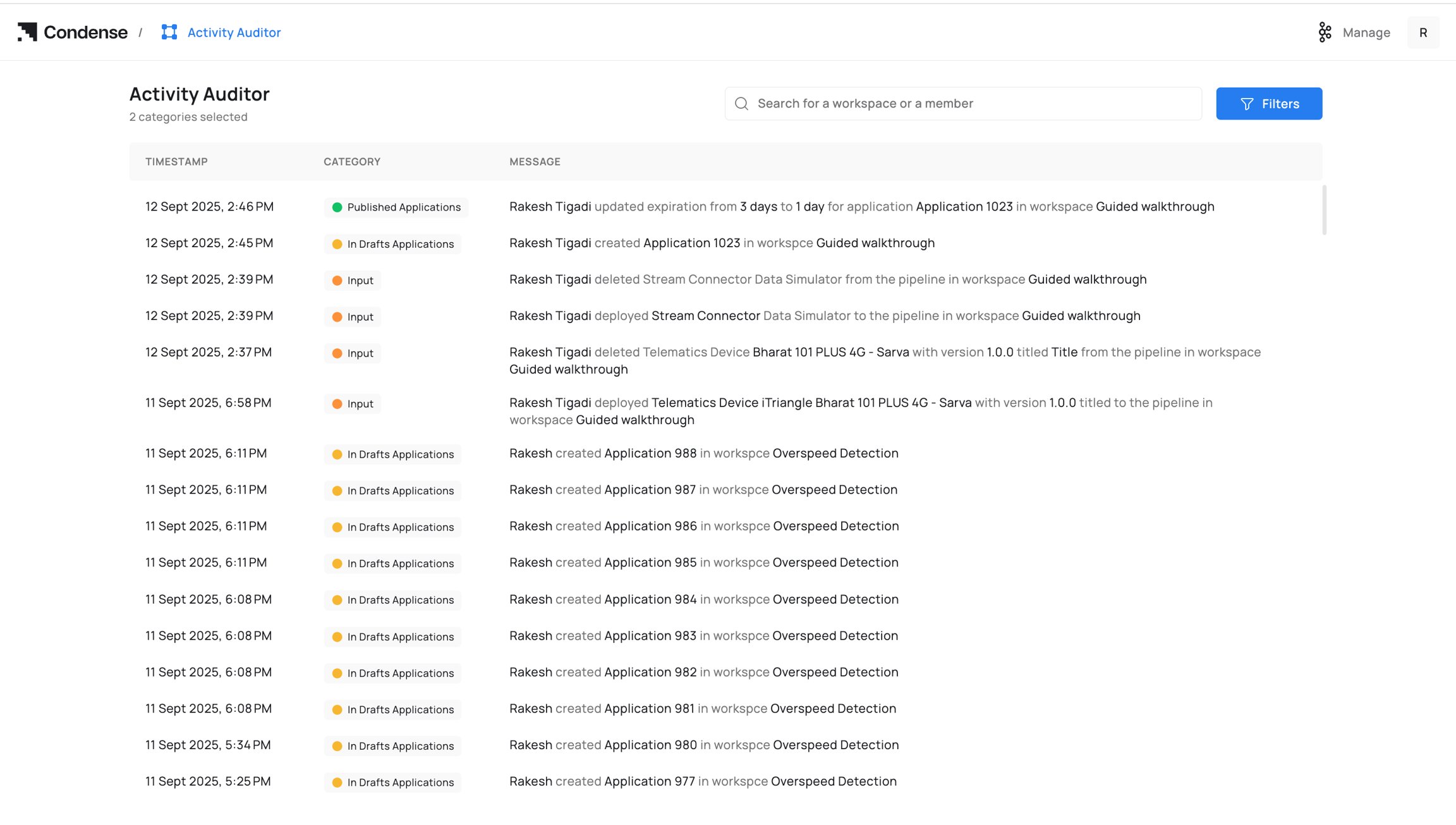
- Select the feature you want to monitor (e.g., Workspaces, Pipelines, Connectors).
- The logs for the selected feature will be displayed. If no logs are available, the message “All Quiet on the Logging Front” will appear.
Filtering Logs
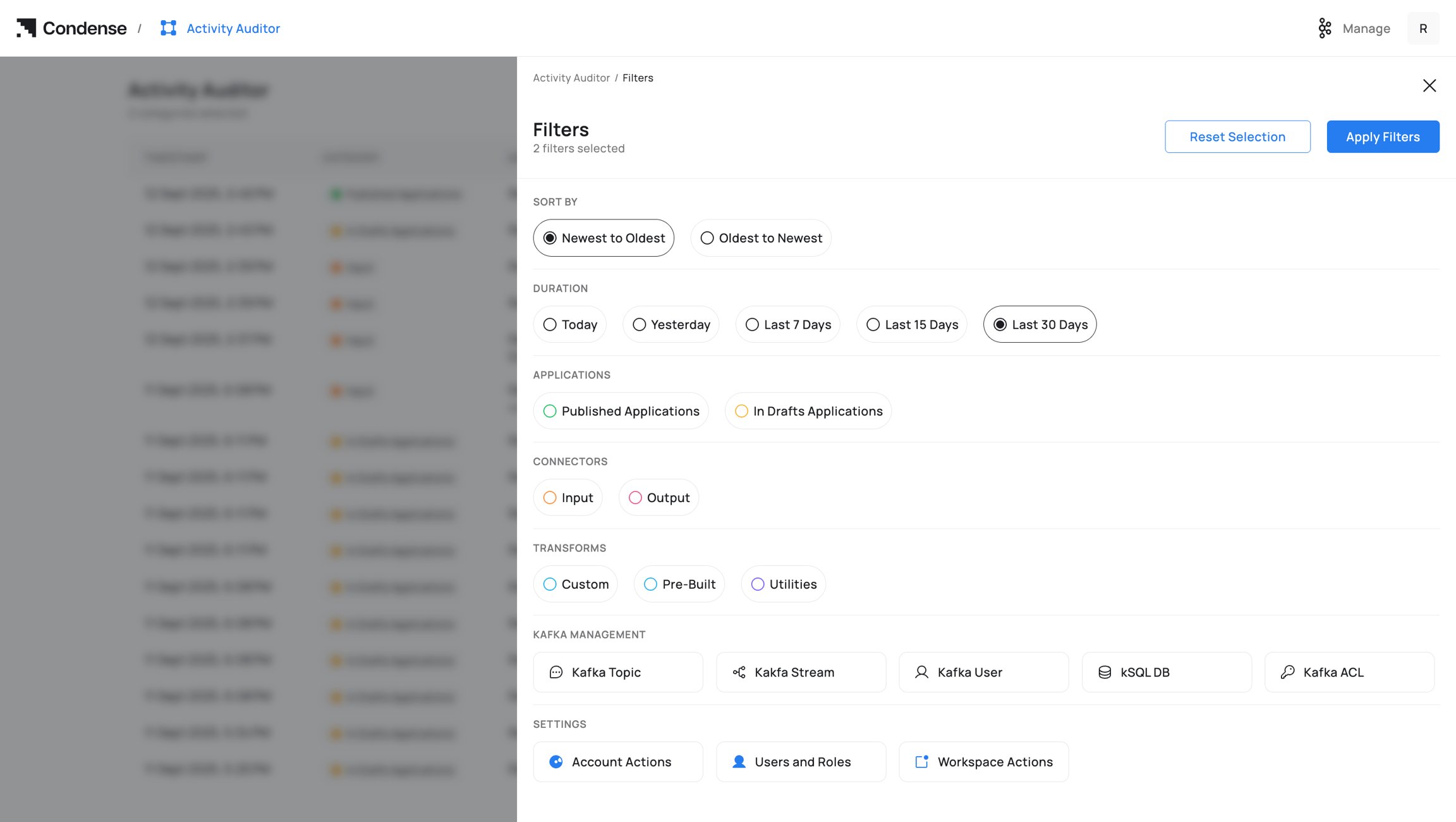
- Use the Select All option to view logs across all components.
- Alternatively, select specific workspaces or components (e.g.,
AES Testing,C2D-Validation) to filter logs.
Searching for Logs
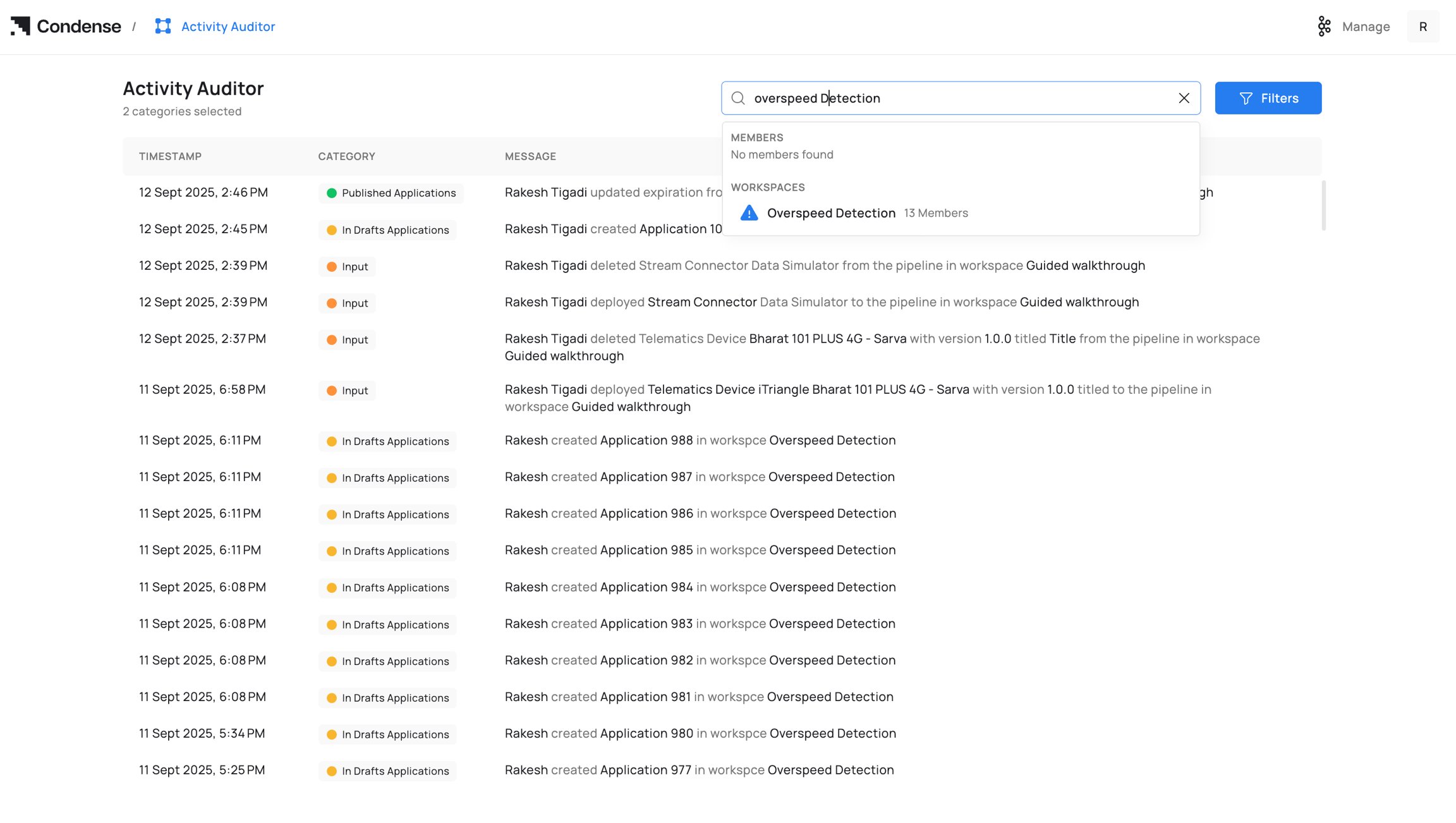
- Use the search bar to find specific logs by keywords, workspace, user names, or dates.
- This is useful for quickly locating relevant activities.
- Review and track user activities, such as create, edit, delete actions, and failure logs, to monitor user actions with usernames added to the organization.