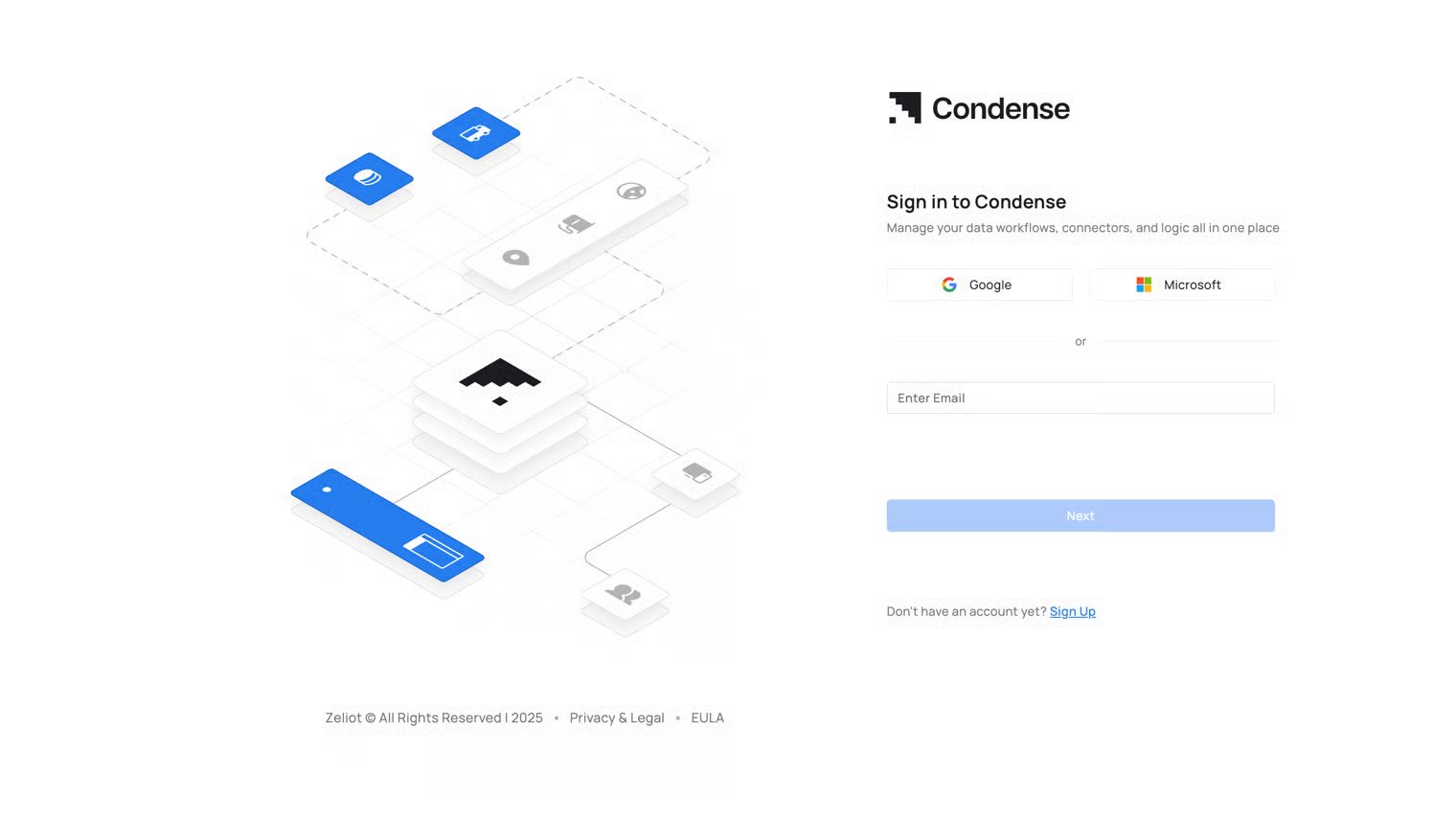
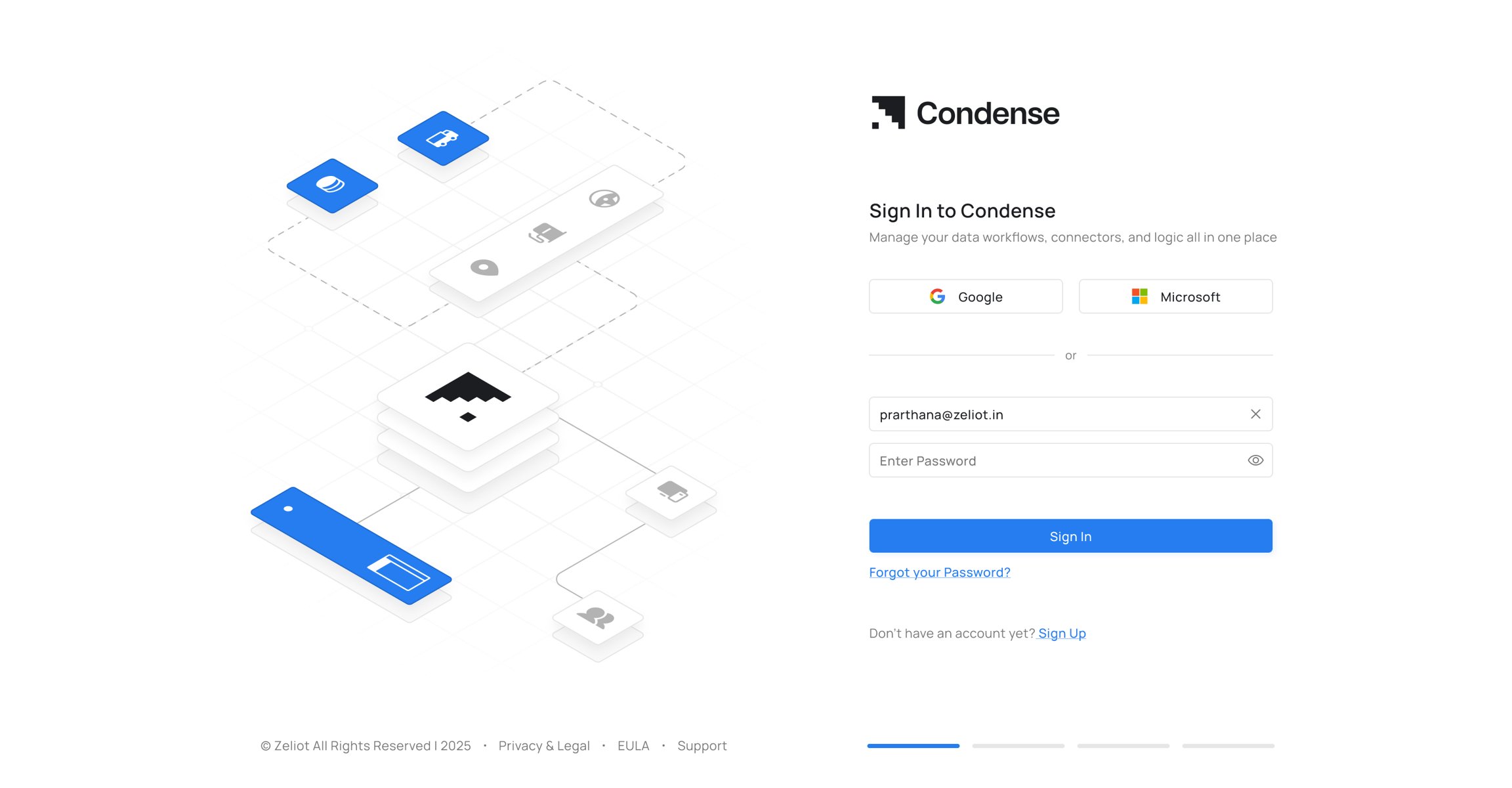
Condense currently uses 2 kinds of authentication methods
- Native Sign-up and Log-in: Users can create an account using their email and password.
- Single Sign On (SSO): Users can sign in using their existing corporate or third-party identity provider credentials (e.g., Google - GSuite, Microsoft-M365).
IMPORTANTRight now, you will be able to log in or sign up through your work email using Google (GSuite) and Microsoft (M365). We will soon be enabling Single Sign On (SSO) using your work email address for other Identity Providers, too.
Accessing the Sign-up and Sign-in Page
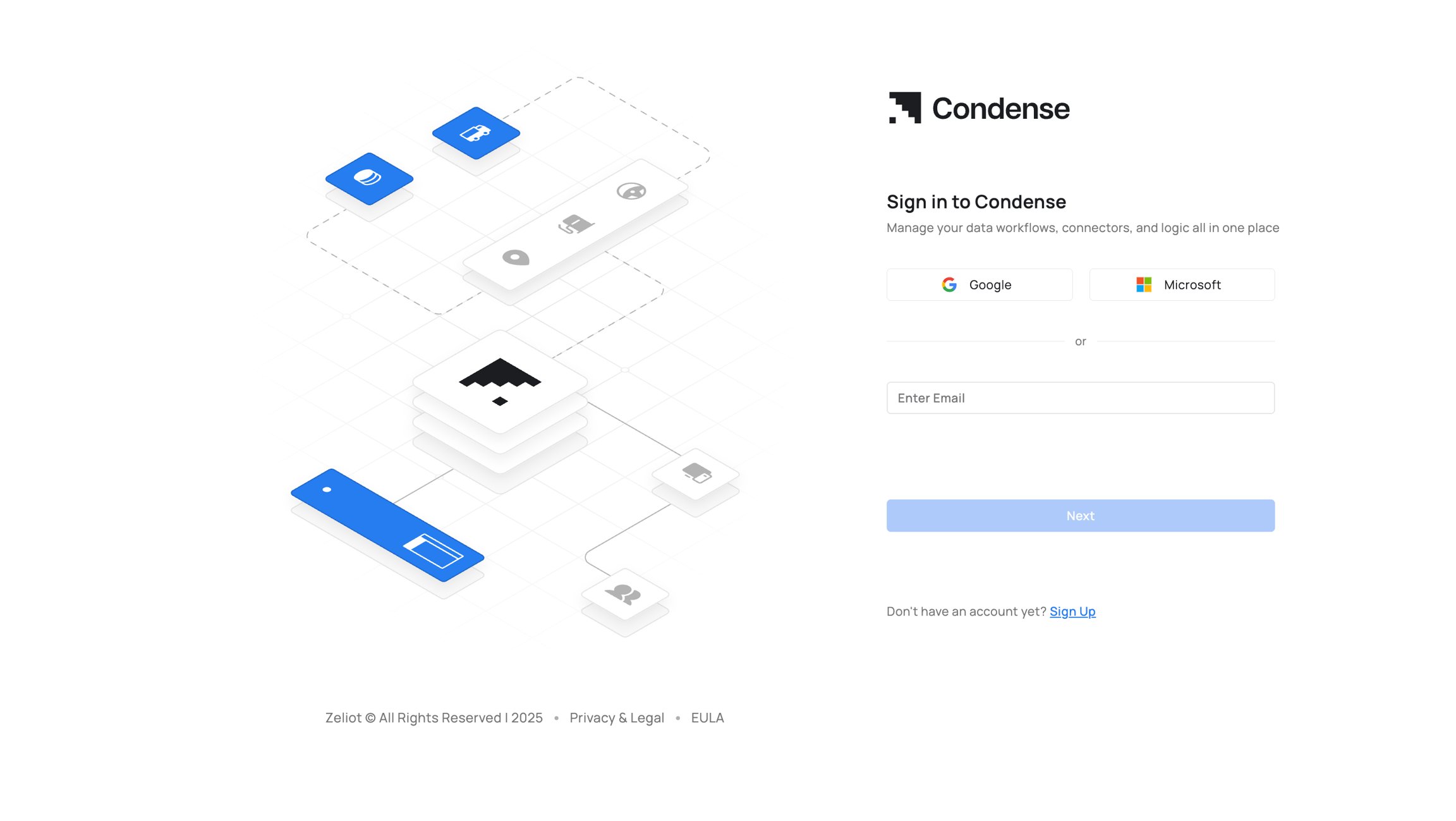
Look for the email from alertsnoreply@zeliot.co.in that has the unique URL for you to sign up and start using the Condense App.
- with Google
- with Microsoft
- with email
- With Google
- With Microsoft
- With email
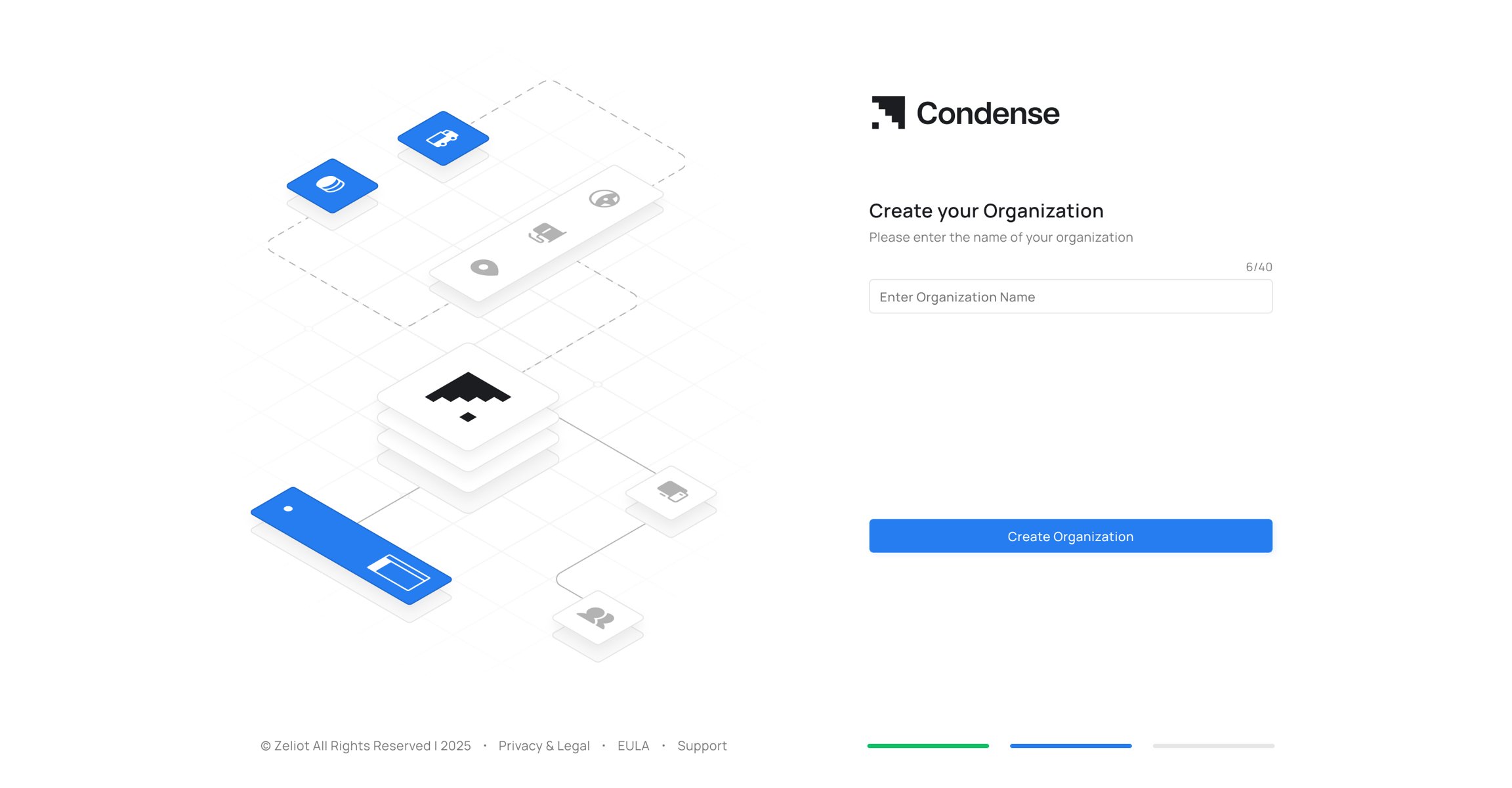
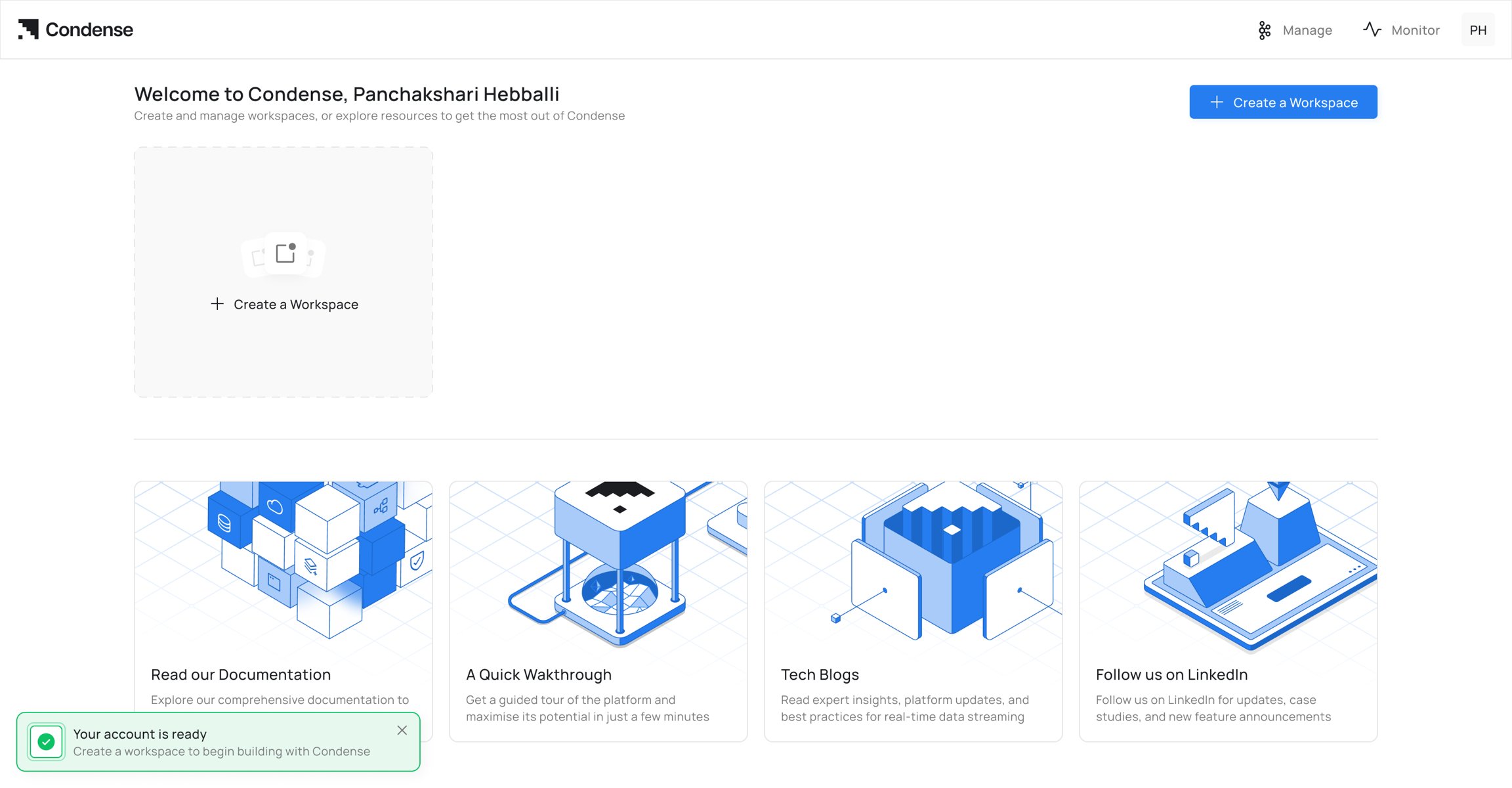
Sign-up Process to access the Condense Application
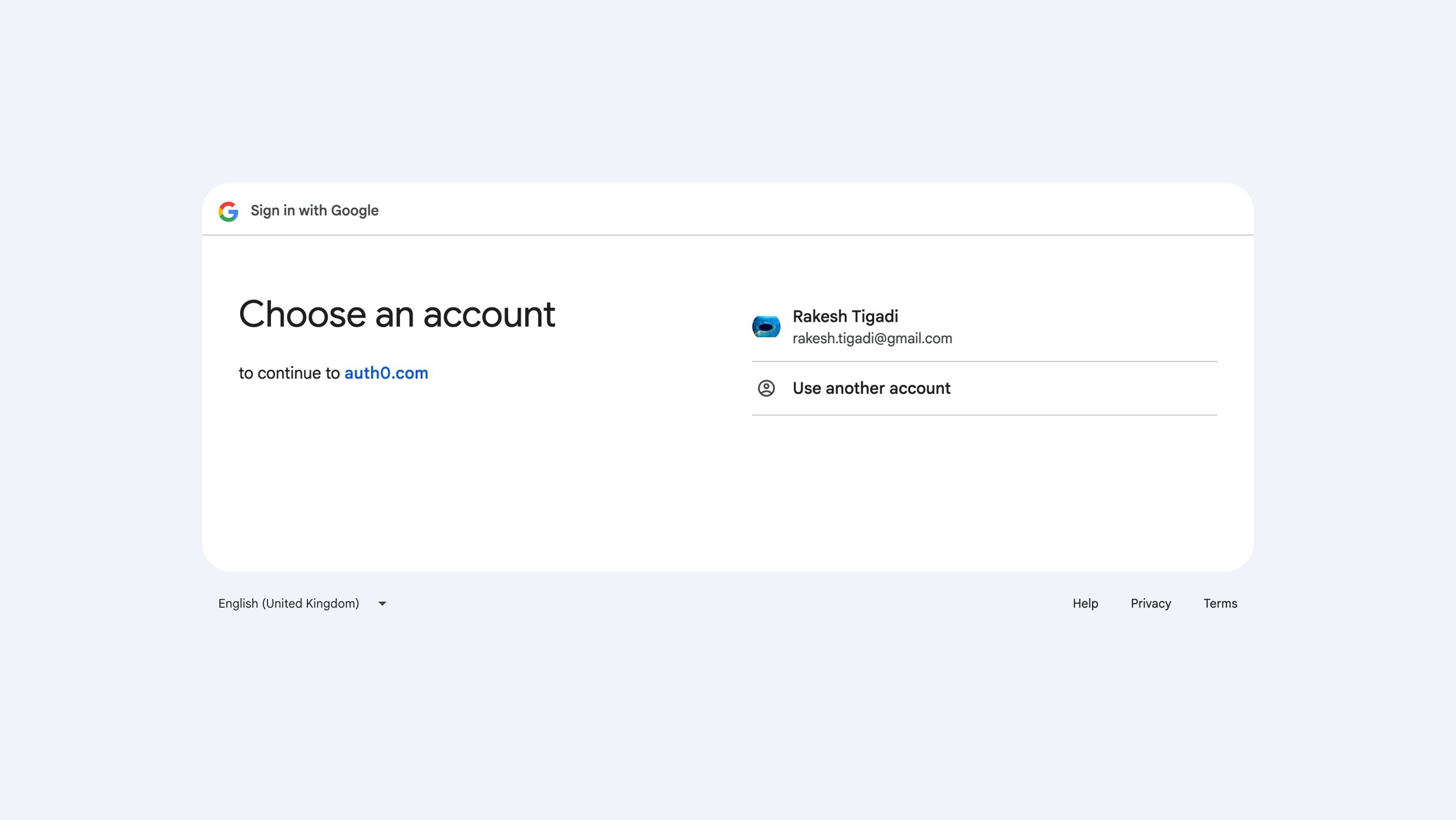
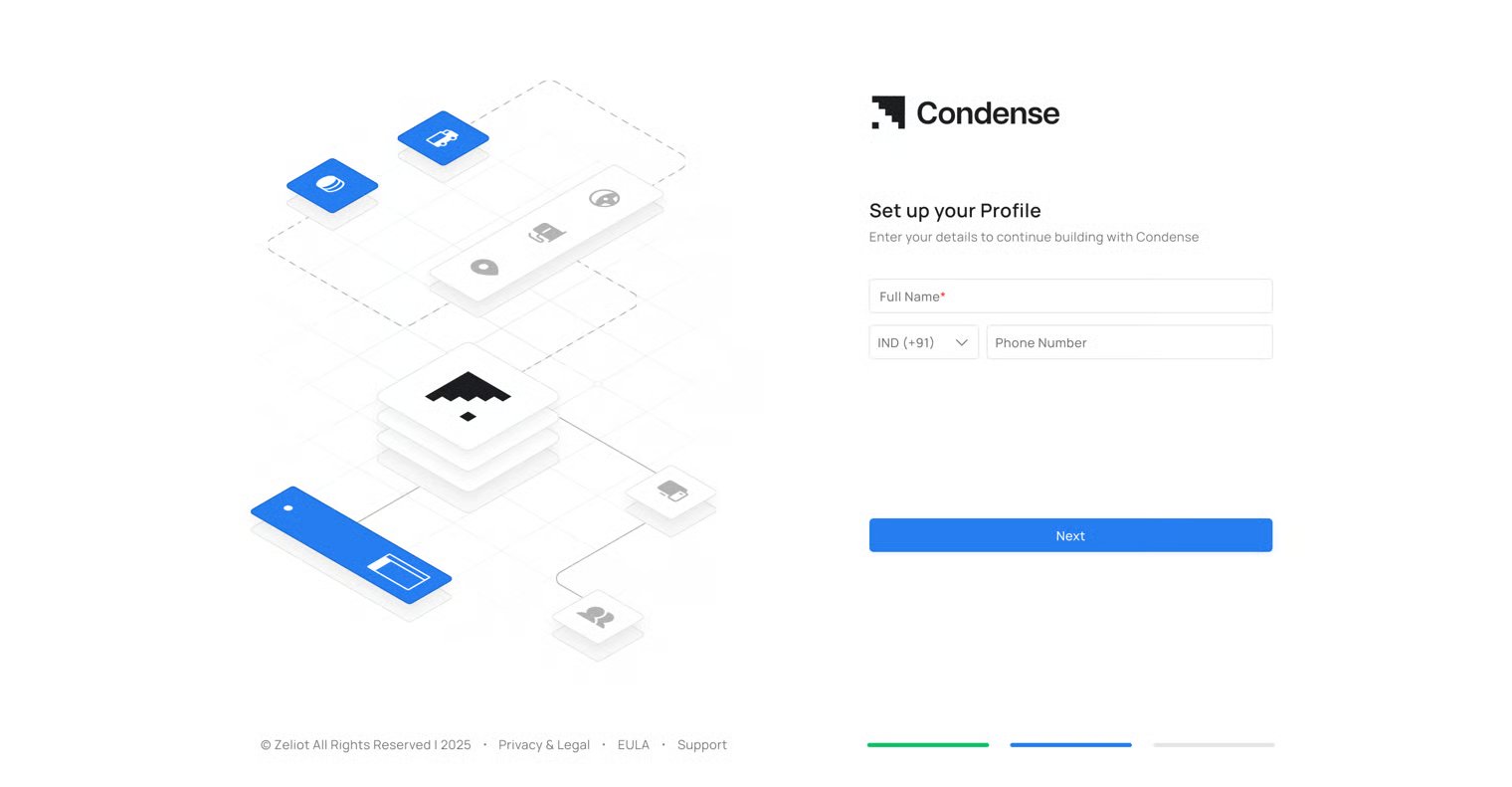
Signing up with Google (GSuite)
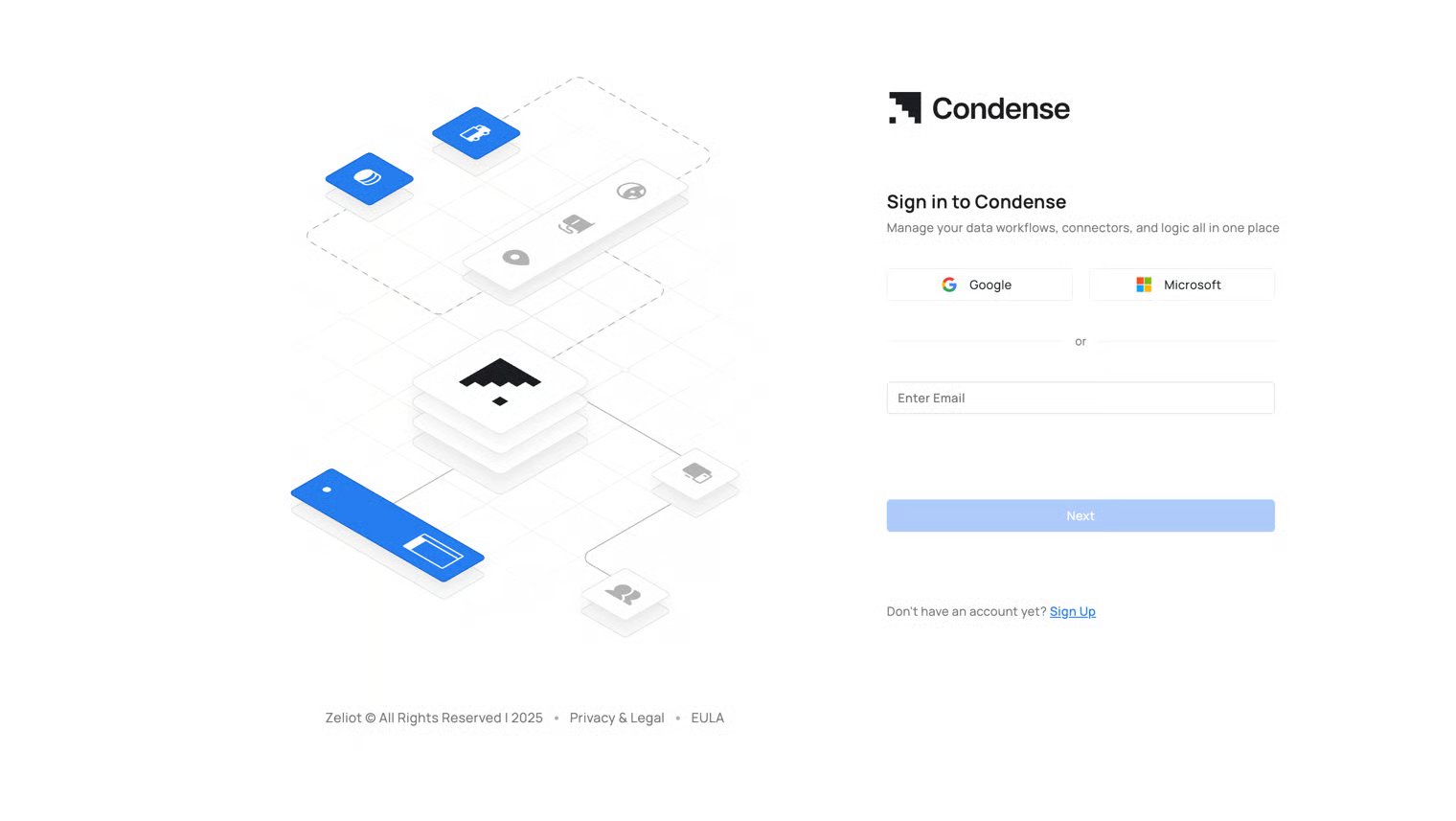
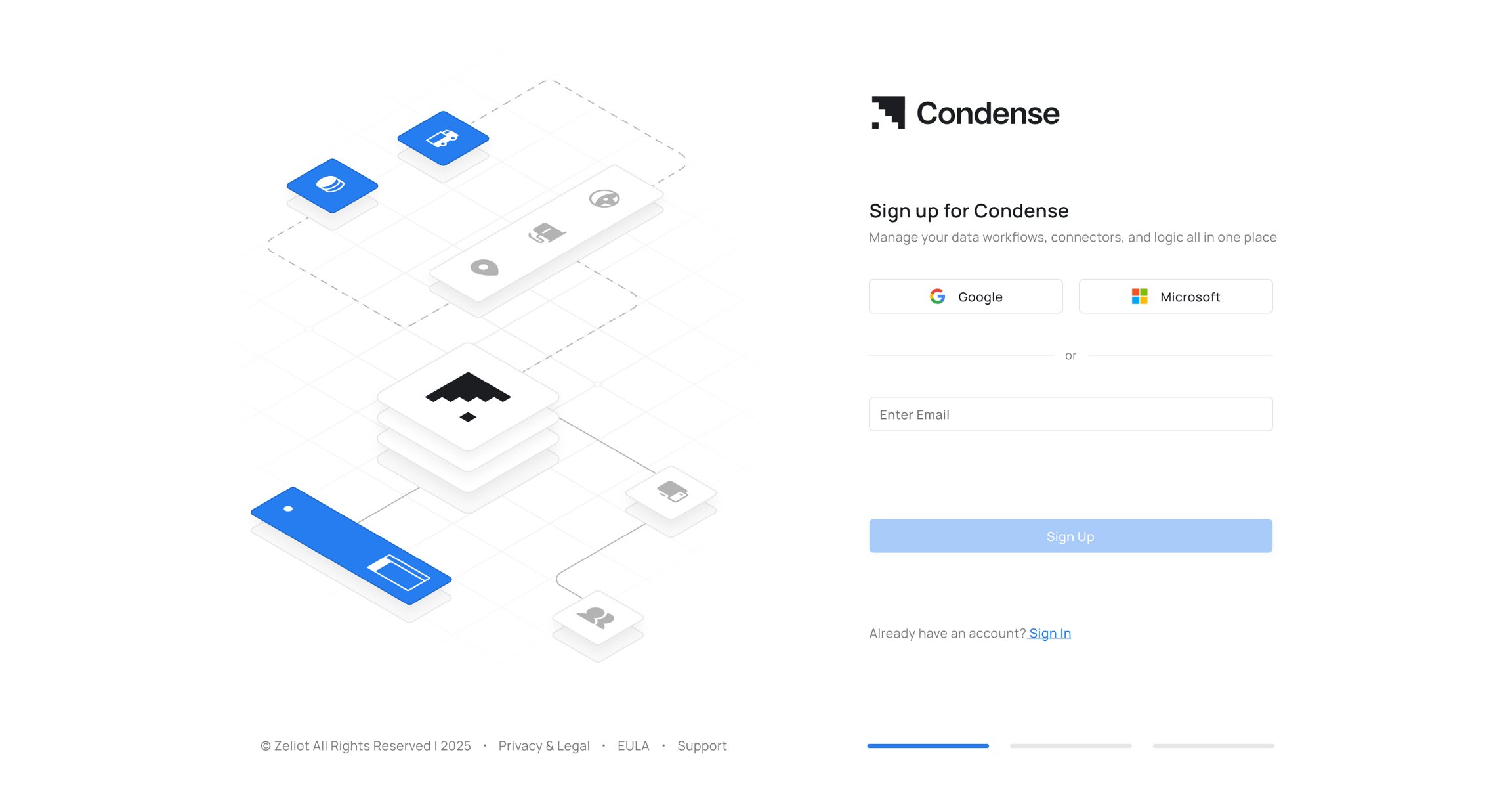
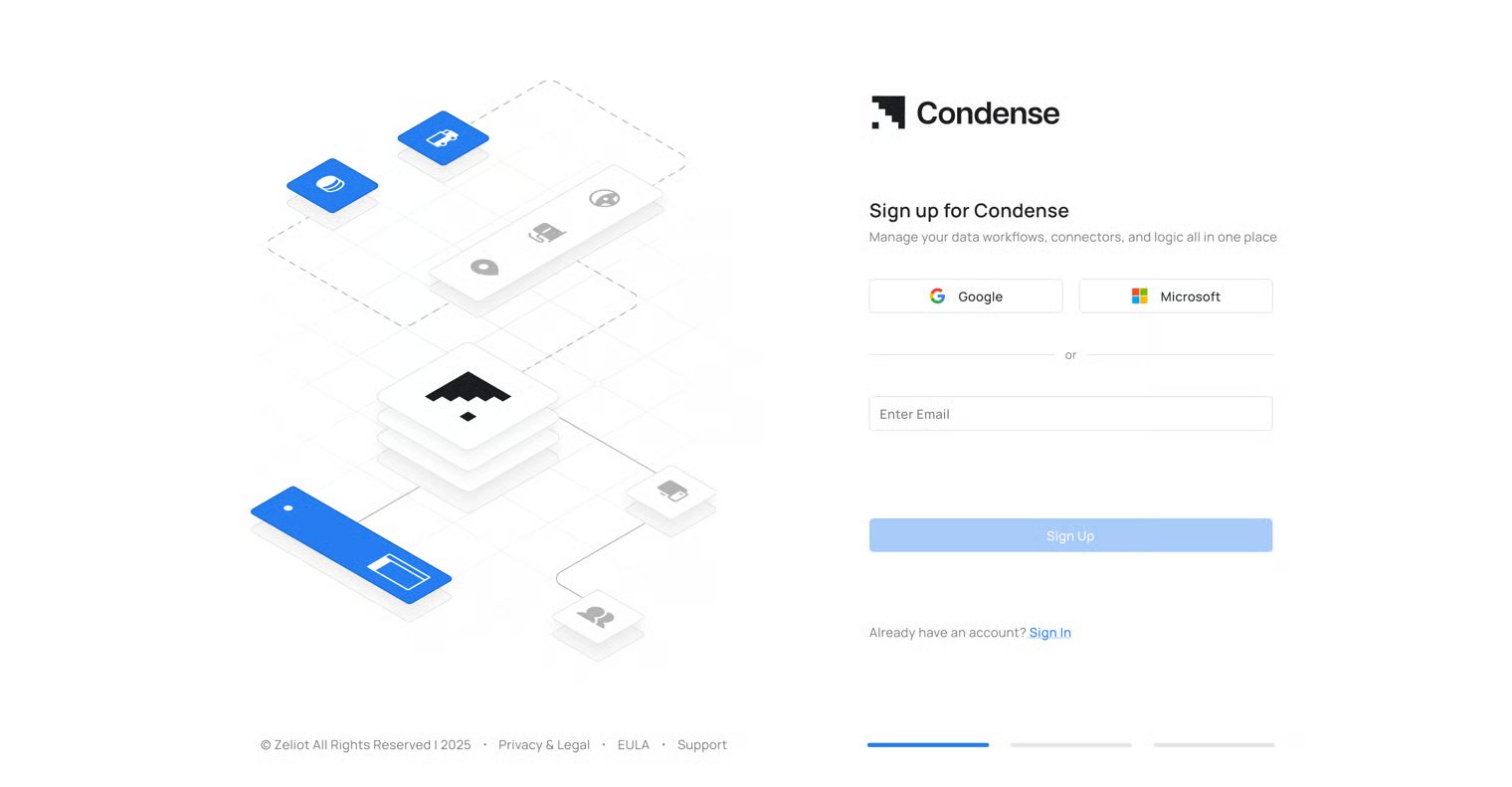
Step 1: Go to the Condense login page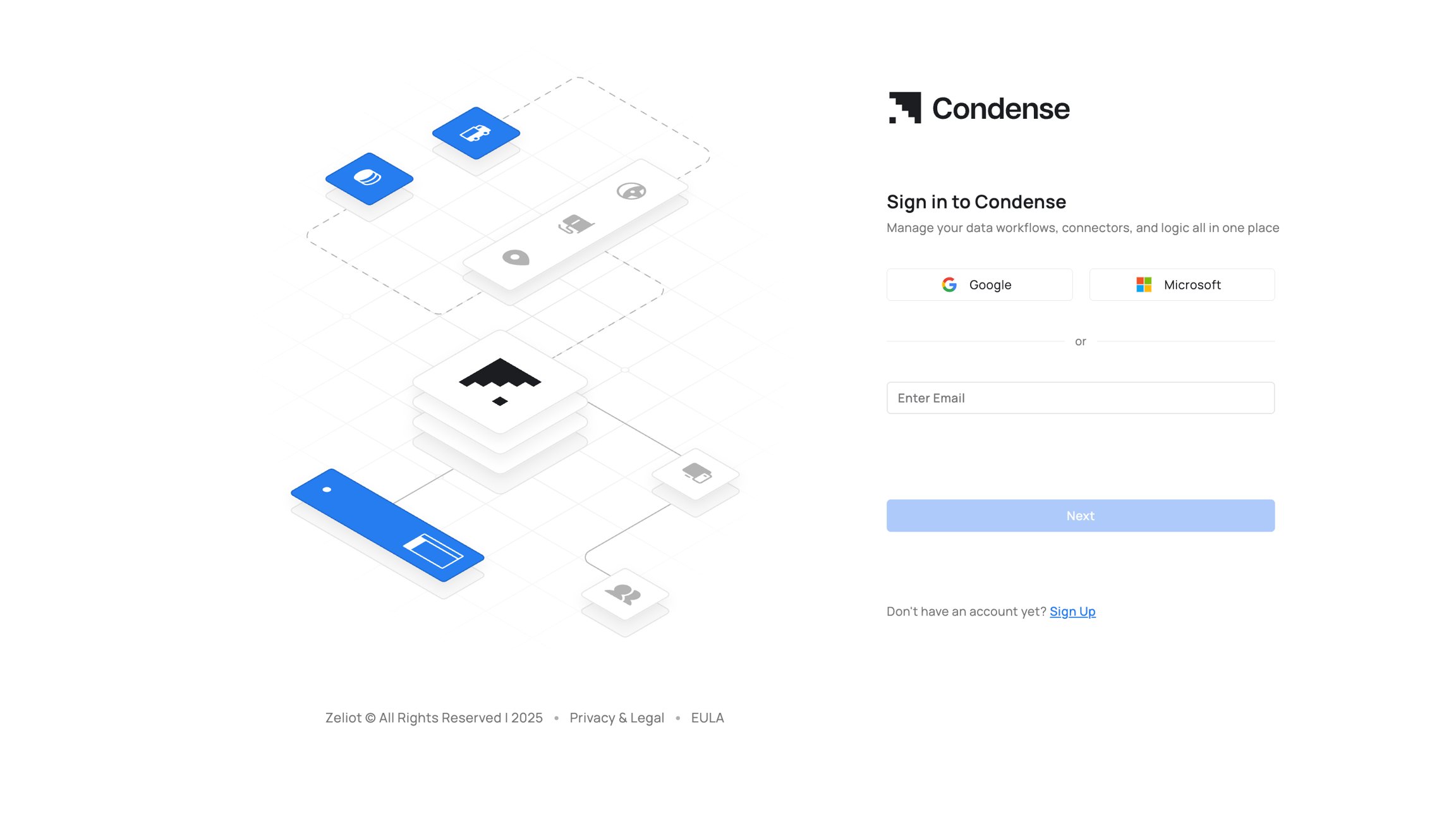
The “Signup” Button is located at the bottom of the login page
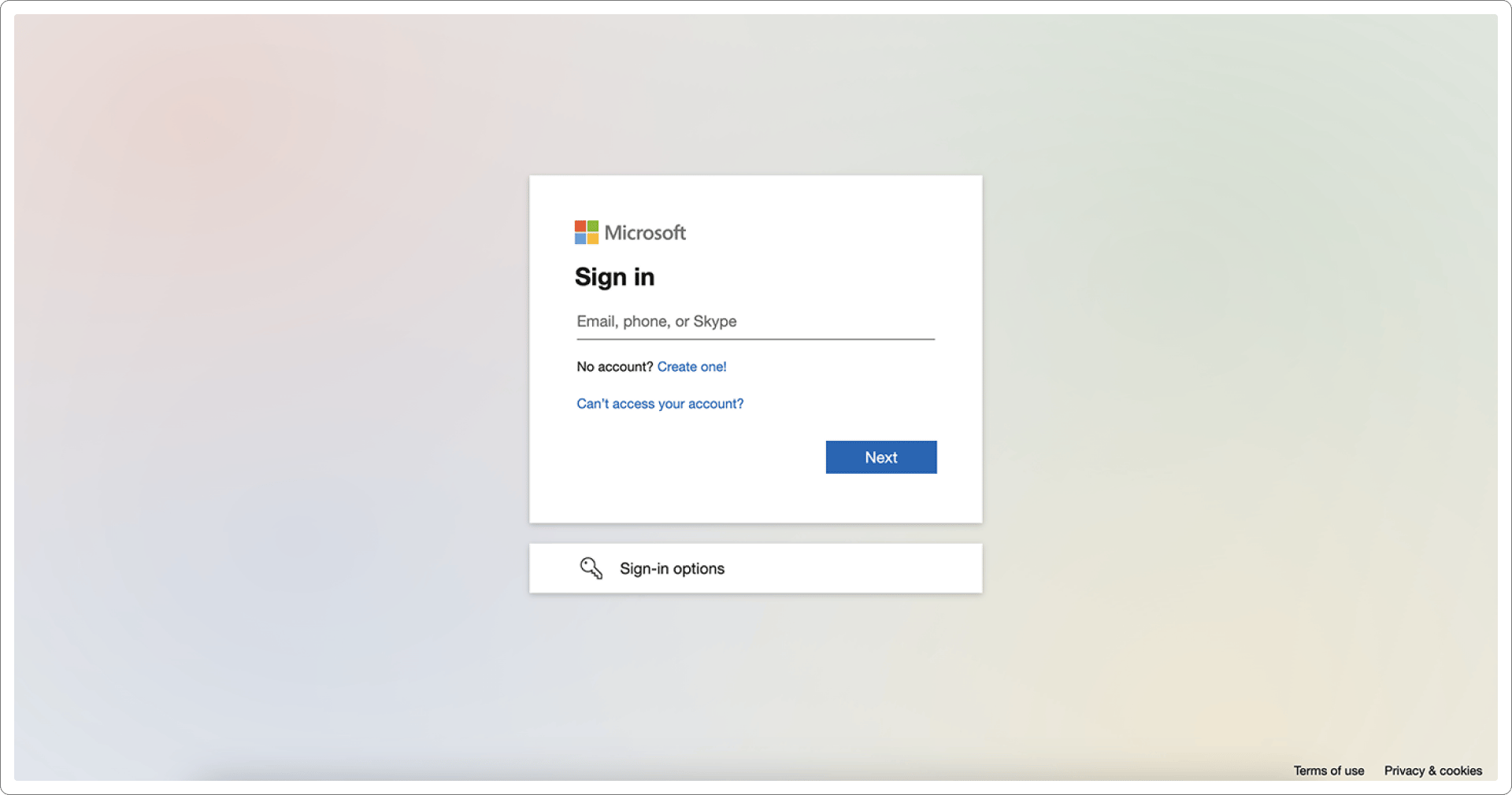
Signing up with Microsoft (M365)
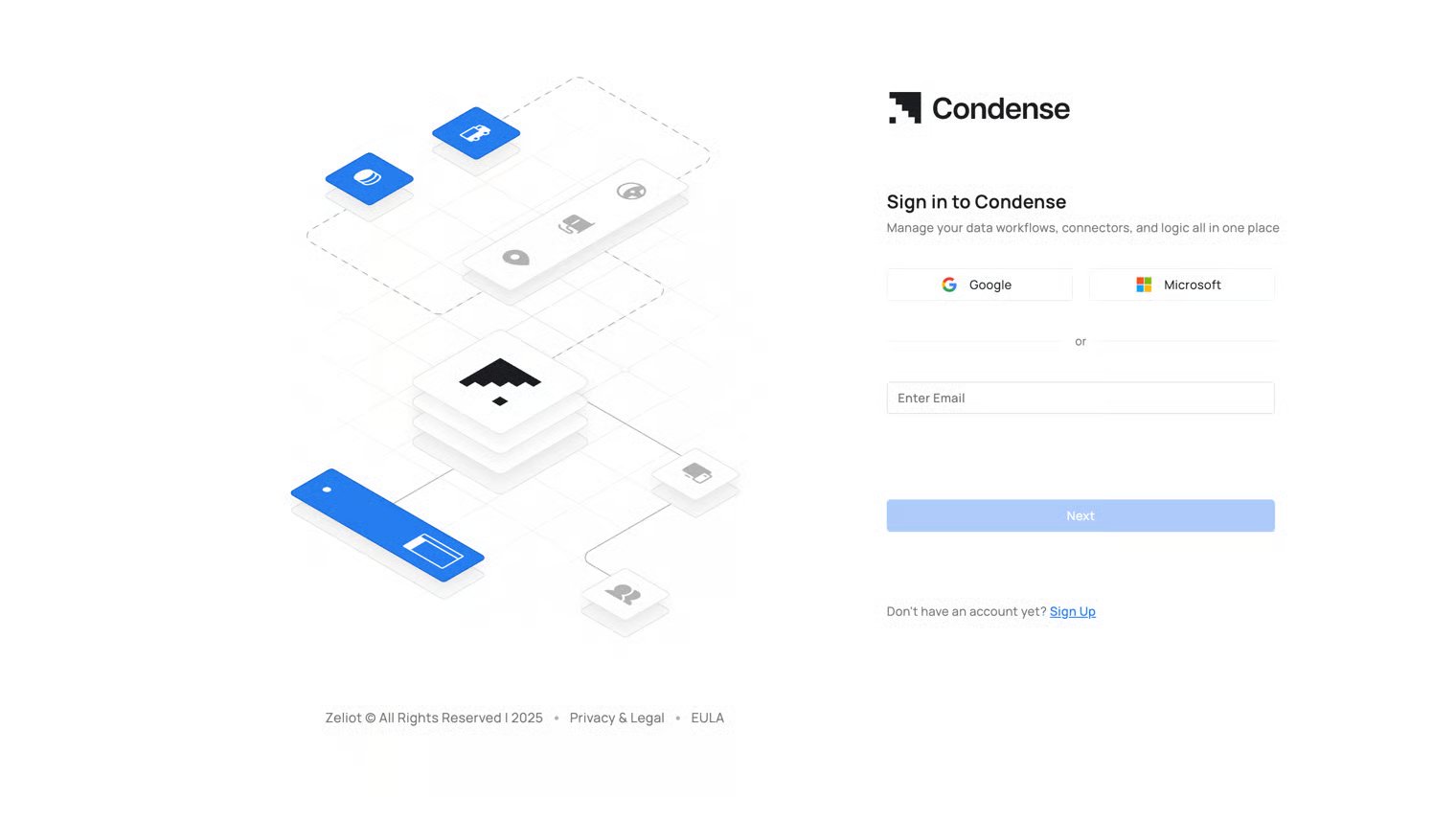
Step 1: Go to the Condense login page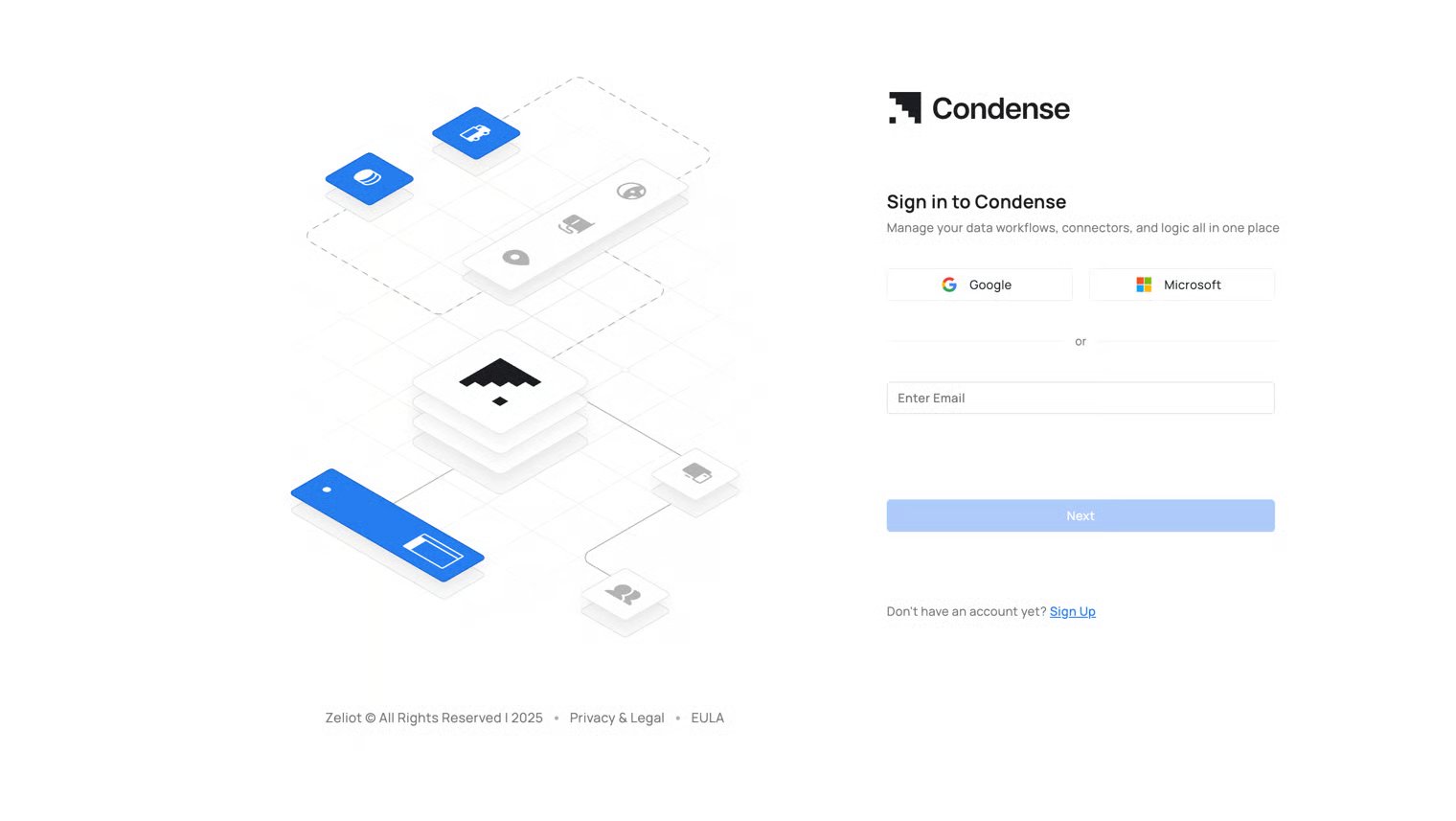
The “Signup” Button is located at the bottom of the login page
Signing up with Email and Password
Step 1: Go to the Condense login page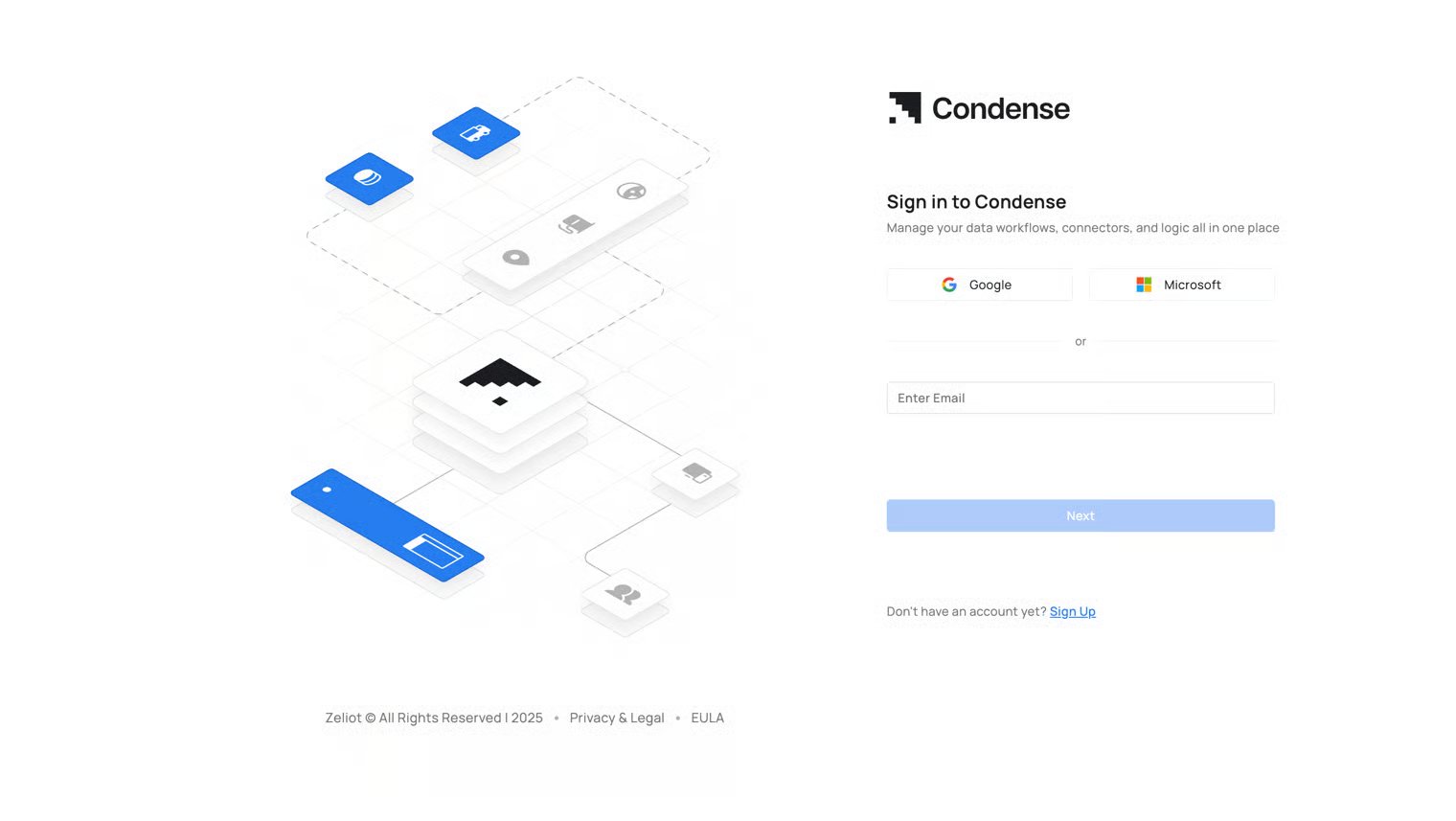
The “Signup” Button is located at the bottom of the login page
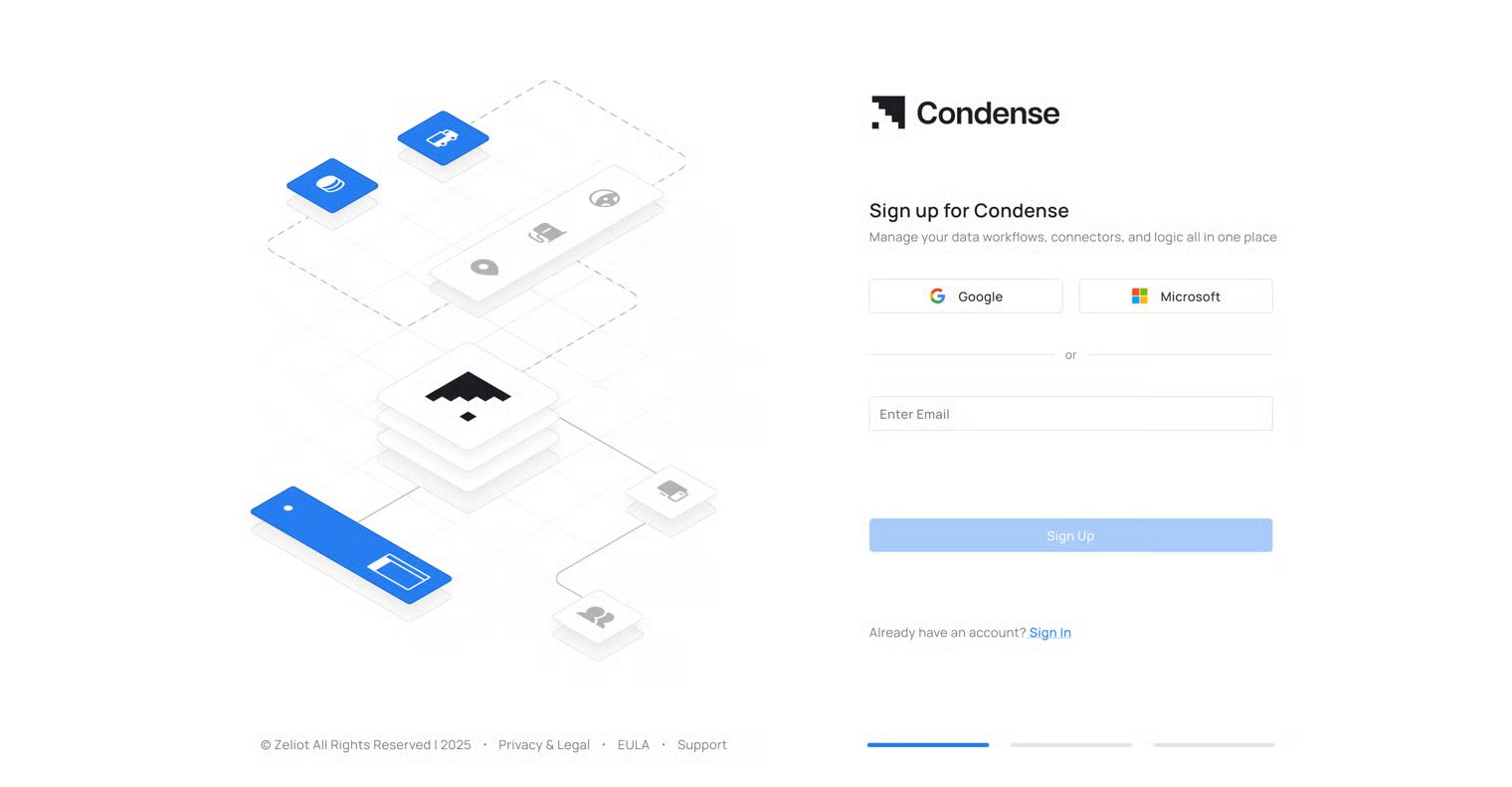
You can invite another user to your workspace by asking them to create an account to use the Condense App from Settings. Read More about this here
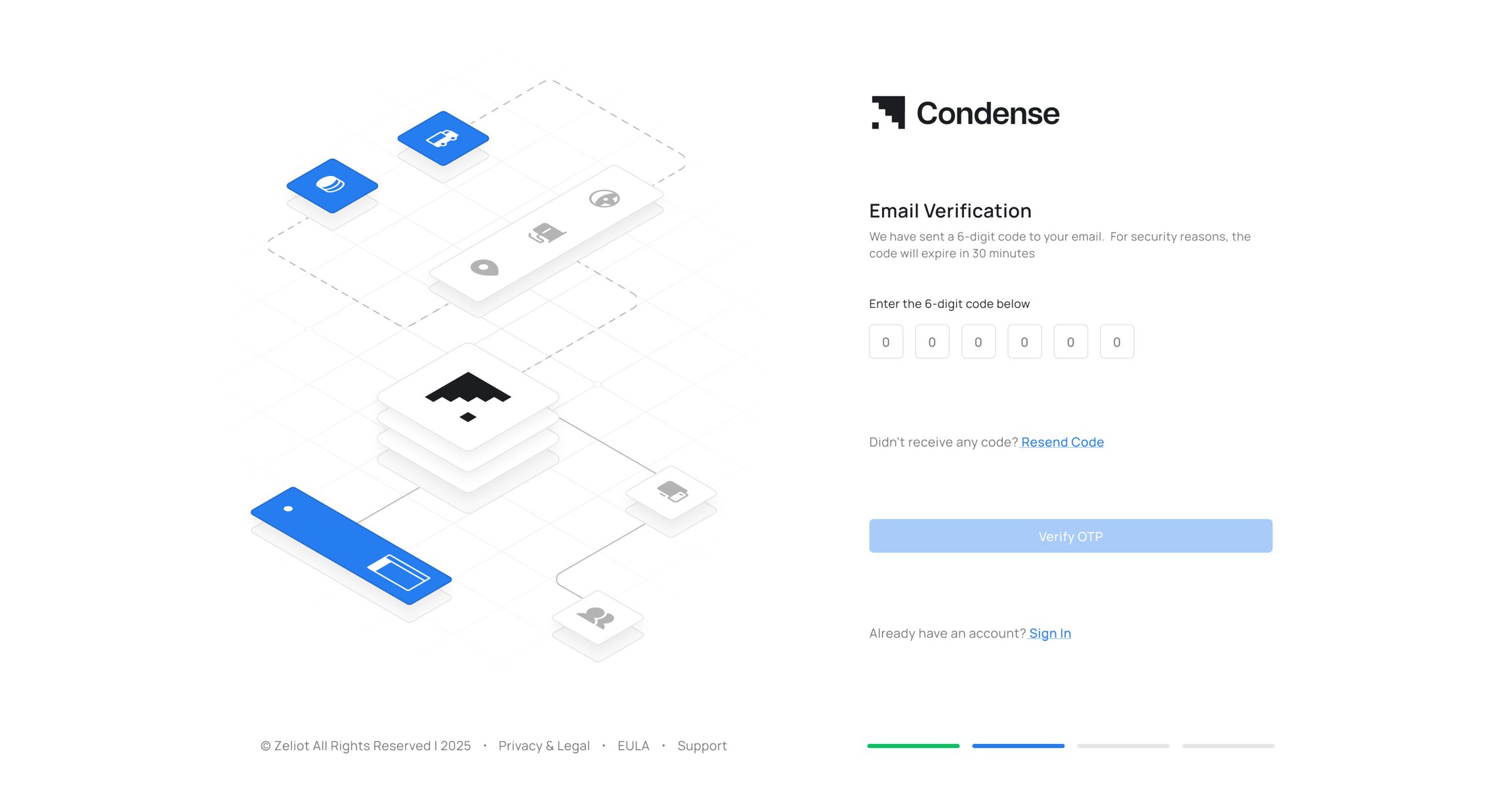
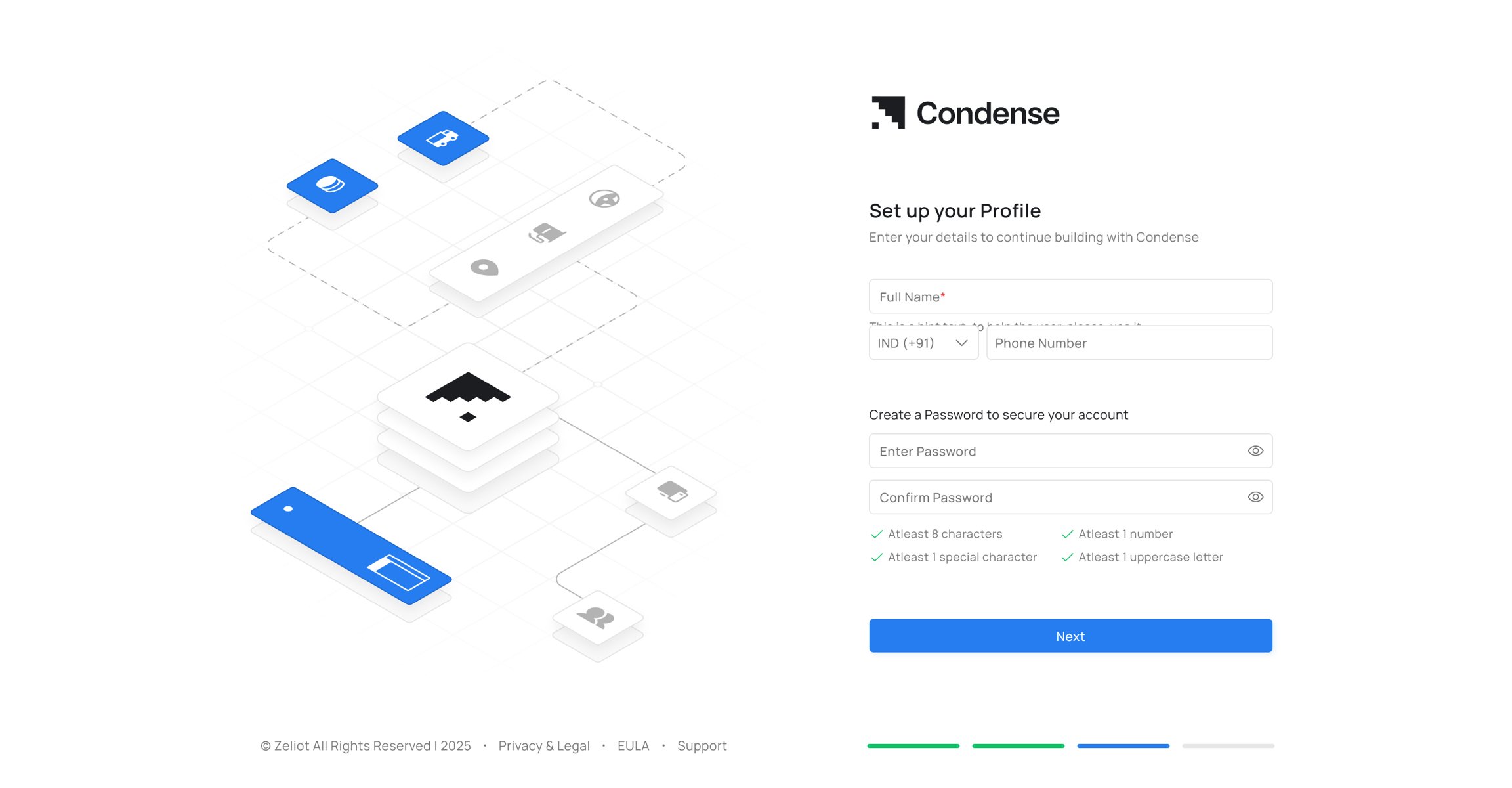
Sign-in Process
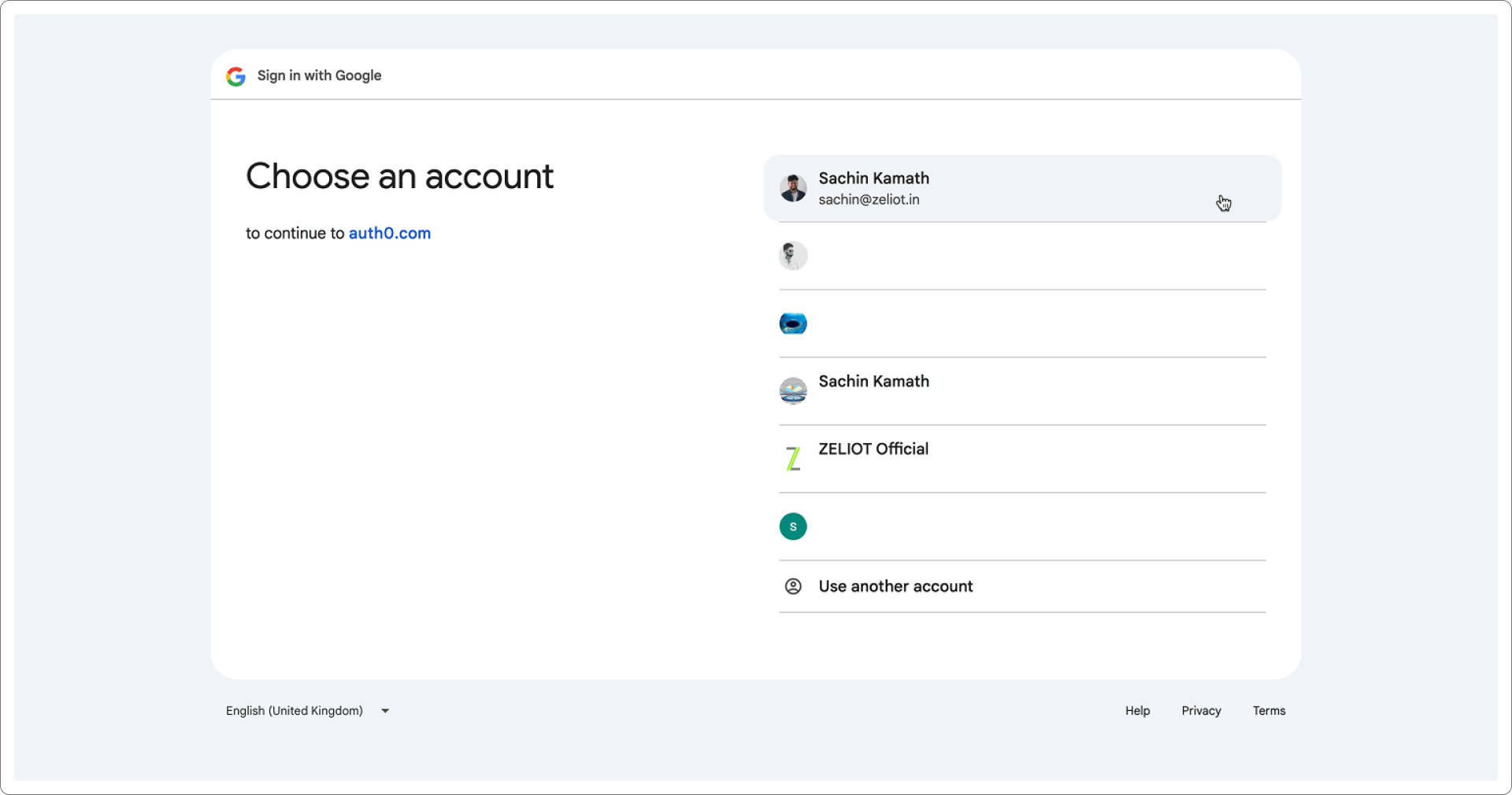
Signing in with Google (GSuite)
Step 1: Go to the Condense login page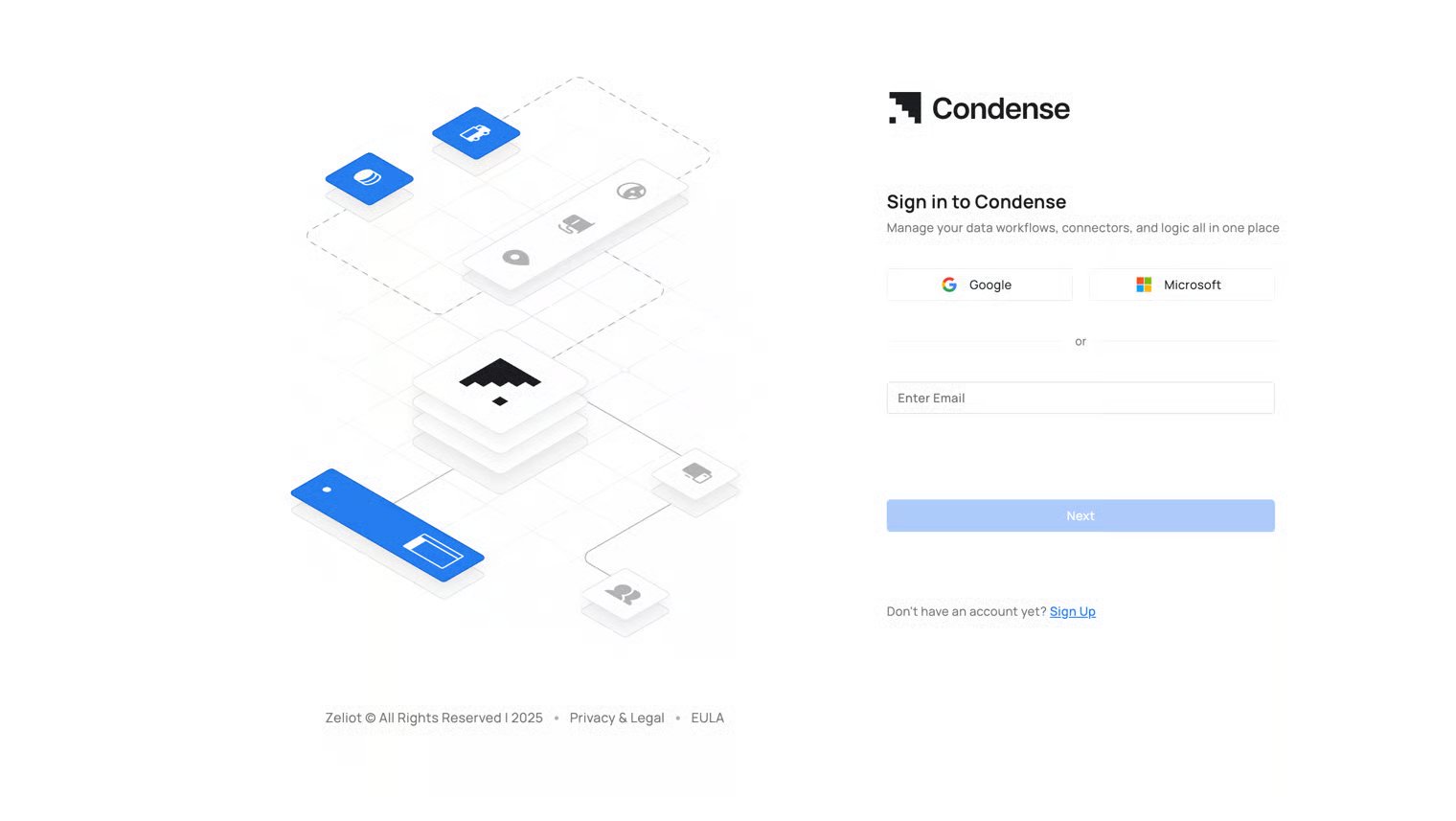
Signing in with Microsoft (M365)
Step 1: Go to the Condense login page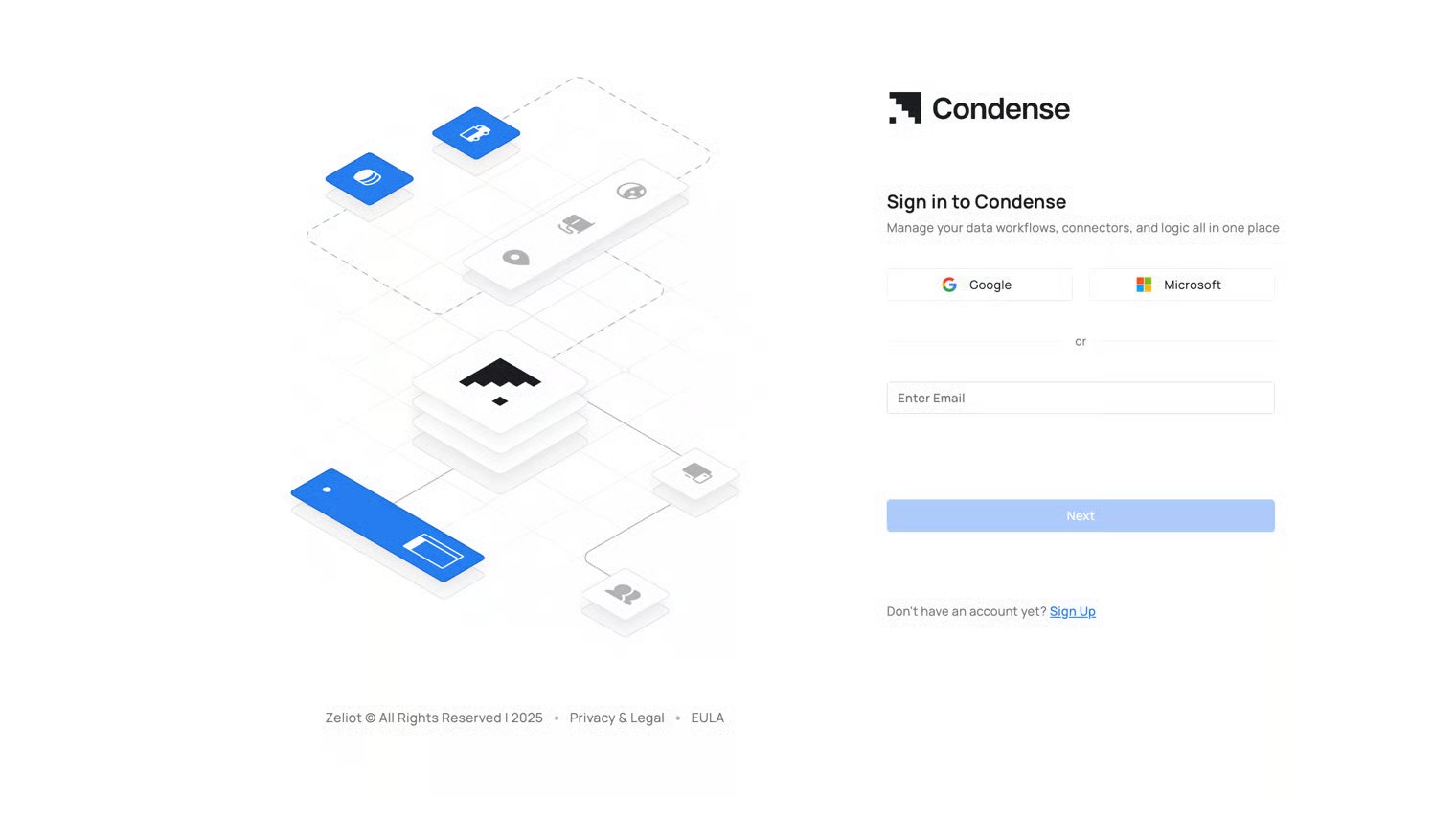
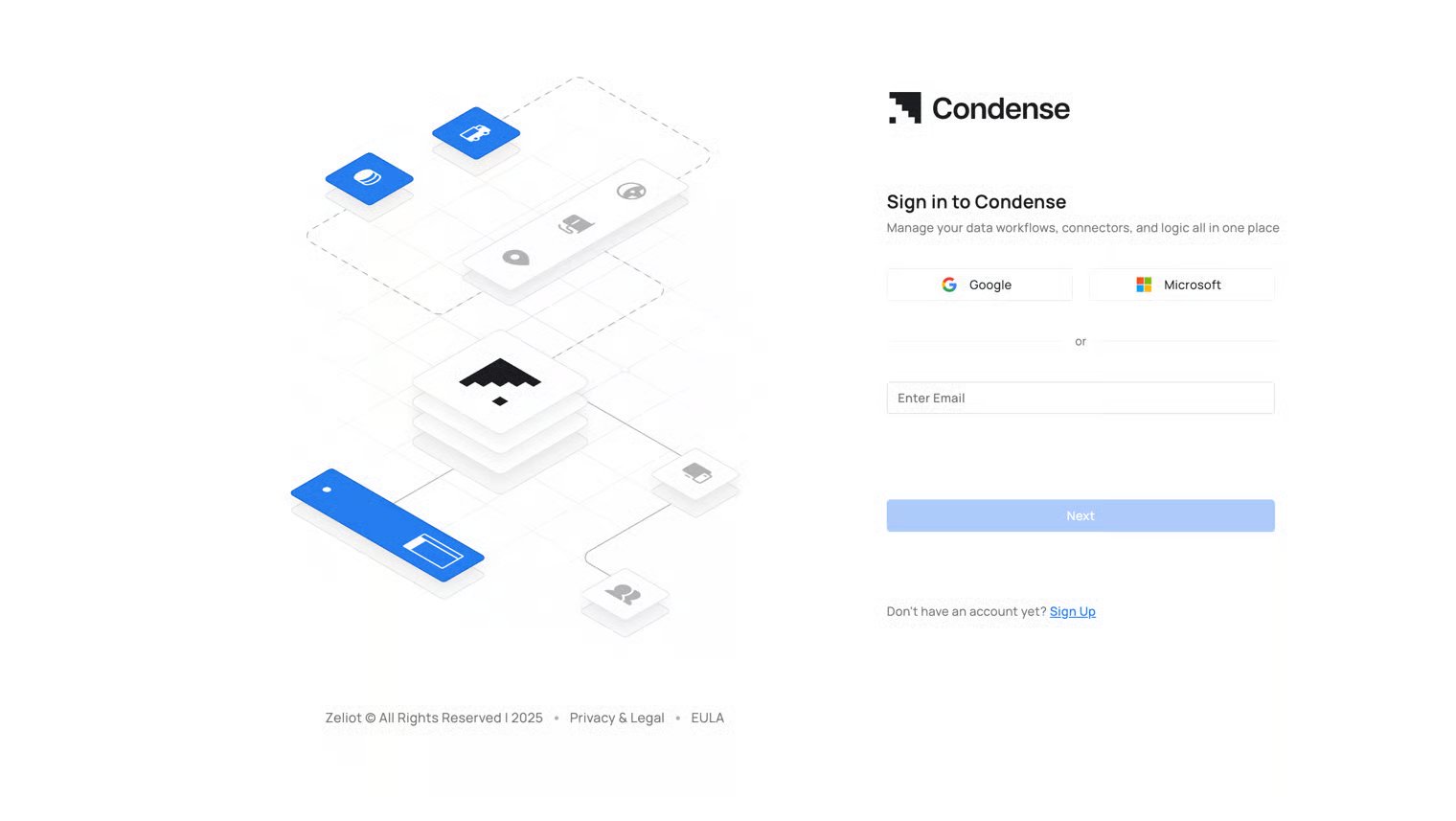
Signing in with Email and Password
Step 1: Open your Condense application which will land you on the login page.